
A grocery budget fails when it is only a number you hope not to cross. If you need to know how to budget for groceries, start with recent spending, choose a realistic monthly target, divide it into trip limits, and keep the running cart total visible before checkout.
Start with your real baseline
Review four to eight weeks of grocery transactions. Remove restaurant meals and split out household products if they belong elsewhere. If you spent $620, do not force the first target to $400. A target around $560 to $590 creates useful pressure without making the plan impossible.
Use monthly and trip limits together
The monthly number protects the rest of your finances. The trip limit guides decisions in the store. A $600 month could use four planned trips near $130 and keep $80 available for a fifth week, milk, produce, or an unexpected price increase.
Decide what counts
Choose whether cleaning products, paper goods, alcohol, pet food, and pharmacy items count as groceries. Consistency matters more than the perfect definition. Split mixed warehouse receipts when one large household purchase would make food spending look misleading.
Plan flexible meals
Write meal roles instead of locking every detail. Protein, vegetable, and rice gives you room to choose chicken thighs, tofu, eggs, or beans based on price. Shared ingredients also help. Onions can serve tacos, soup, and pasta instead of appearing in only one recipe.
Correct the cart precisely
When a $150 cart reaches $163, protect ingredients that complete meals. Remove duplicate snacks, nonessential drinks, oversized quantities, or products without a clear job. Cutting a $6 drink and one extra $7 snack fixes the total without deleting dinner.
Review monthly, not emotionally
One stock-up trip does not prove the budget is broken. Look for patterns across several shops. Raise the target when it repeatedly fails despite realistic planning. Lower it when money is consistently left over and the household still has enough food.
Use the final cart review to connect the plan with the actual total before checkout.
Turn the monthly number into a weekly routine
Pick one regular planning day and one main shopping day. On planning day, check the refrigerator, freezer, and pantry before choosing meals. Write down food that must be used soon. This ten-minute check prevents buying a second jar of sauce while the first one hides behind the milk.
Next, choose three or four dinner anchors and leave one flexible night. A flexible night might be leftovers, eggs and toast, soup, or a freezer meal. Planning every night too tightly often creates waste when work runs late or plans change.
Separate groceries from wish-list items
A useful list has a clear core and a visible optional section. The core completes meals and covers breakfast, lunch, and household staples. The optional section holds treats, interesting sale items, and products you can buy only if the trip total leaves room.
This is more practical than pretending optional food will never enter the cart. You are not banning it. You are deciding that dinner ingredients receive the budget first.
Use a real cart example
Suppose the trip limit is $140. Meal ingredients, breakfast food, milk, fruit, and pantry replacements total about $112. That leaves $28 for flexible items. If two snacks, a drink, and a household item add up to $36, the decision is visible before checkout. Remove one $8 product or reduce a duplicate quantity.
The same logic works with a smaller budget. With a $70 limit and $58 of essentials, there is $12 for extras. The numbers change, but the order does not.
What to do after an over-budget week
Do not punish the next week automatically. First identify why the total was high. A pantry restock is different from repeated impulse purchases. If you bought rice, oil, spices, and frozen food that will last, the next trip may naturally be lighter.
If the problem was five unplanned products, create one rule for the next trip. You might allow one unplanned item, set a $10 flexible limit, or delay every display item until the final cart review.
How to use Cart AI for a grocery budget
Create or open a trip and set the budget for that specific shop. Add items and their prices as they go into the cart. The trip view shows the cart total, the amount remaining, and the percentage of the budget already used, so the limit stays useful while you are still making decisions.
When the cart is near or above the amount you planned, open the trip menu and choose Adjust Cart. Cart AI reviews the tracked items and can suggest removing a nonessential product or reducing a quantity. Select only the suggestions that make sense for your household.
Before applying anything, check the projected cart total. This lets you compare the savings with the effect on your meals. Cart AI does the arithmetic, but you keep control of the final cart.
Keep the budget useful when plans change
If a dinner gets canceled, move its perishable ingredients into another meal or freeze them. If guests are added, increase the trip limit deliberately rather than pretending the original amount still covers more people. A budget is a decision tool, not a promise that circumstances will stay fixed.
Keep a short note after each trip: what ran out, what was wasted, and which item created the biggest surprise. After a month, those notes are more useful than a generic spending average because they show exactly where your household’s plan needs adjustment.
How to build a budget grocery list in Cart AI
Open Cart AI and go to the Lists tab. This is where saved shopping lists show their item counts and estimated totals. Starting here lets you connect the trip limit you calculated with an actual list before you enter the store.
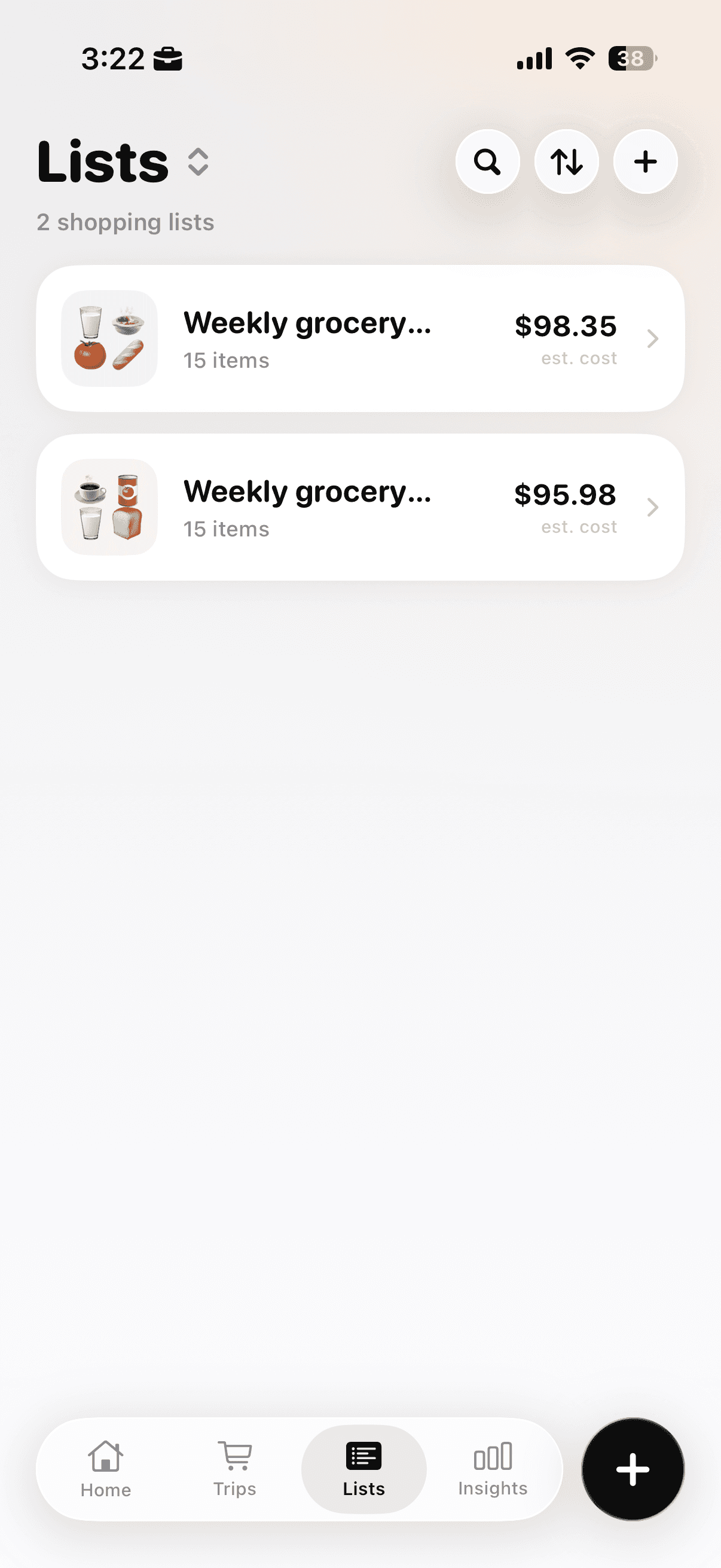
The Lists tab keeps saved lists, item counts, and estimated totals in one place.
Tap the plus button and choose Plan a Shopping List. Shop & Track Now starts a live trip, while Quick Cart Total is designed for quickly totaling products before checkout.
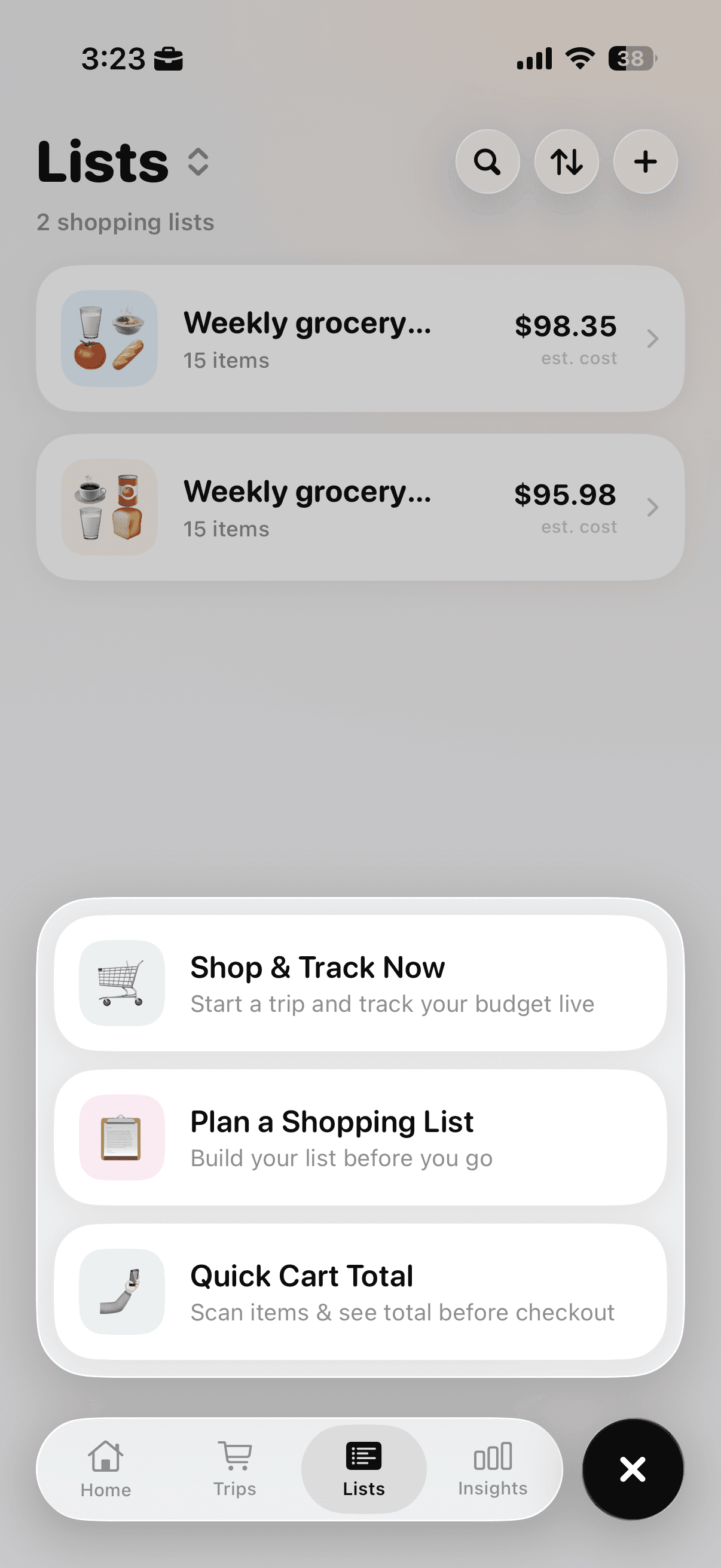
Choose Plan a Shopping List when preparing groceries before the store.
Turn on Plan with AI and describe the shop clearly. For this article, a useful prompt would be “One week of groceries for two people under $140, with three dinner anchors and one flexible leftover night.” Add dietary needs or foods already in the pantry when they matter.
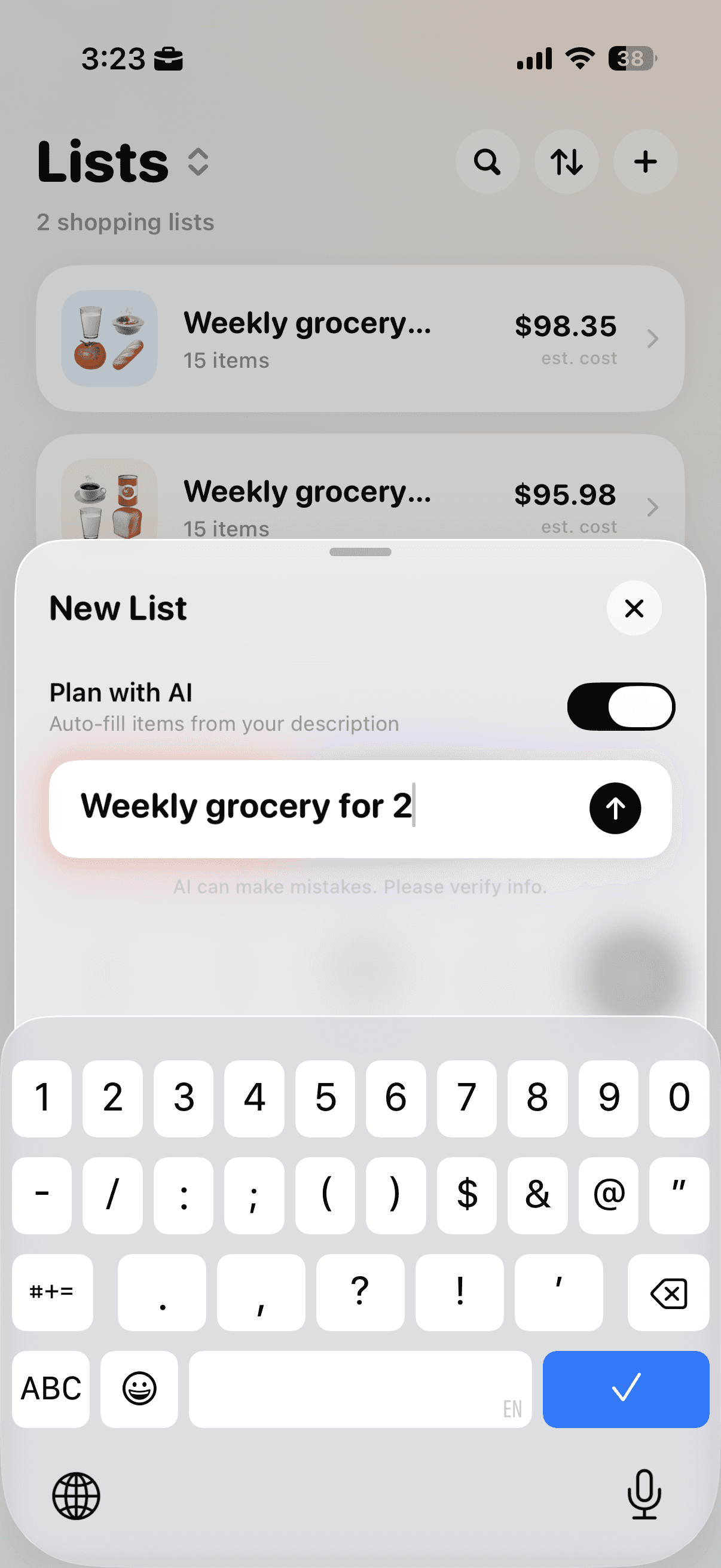
Enable Plan with AI and describe the household, timeframe, budget, and important constraints.
Review the generated list rather than treating it as final. Check quantities, remove food already at home, and confirm that the estimated total leaves a small buffer below the trip limit.
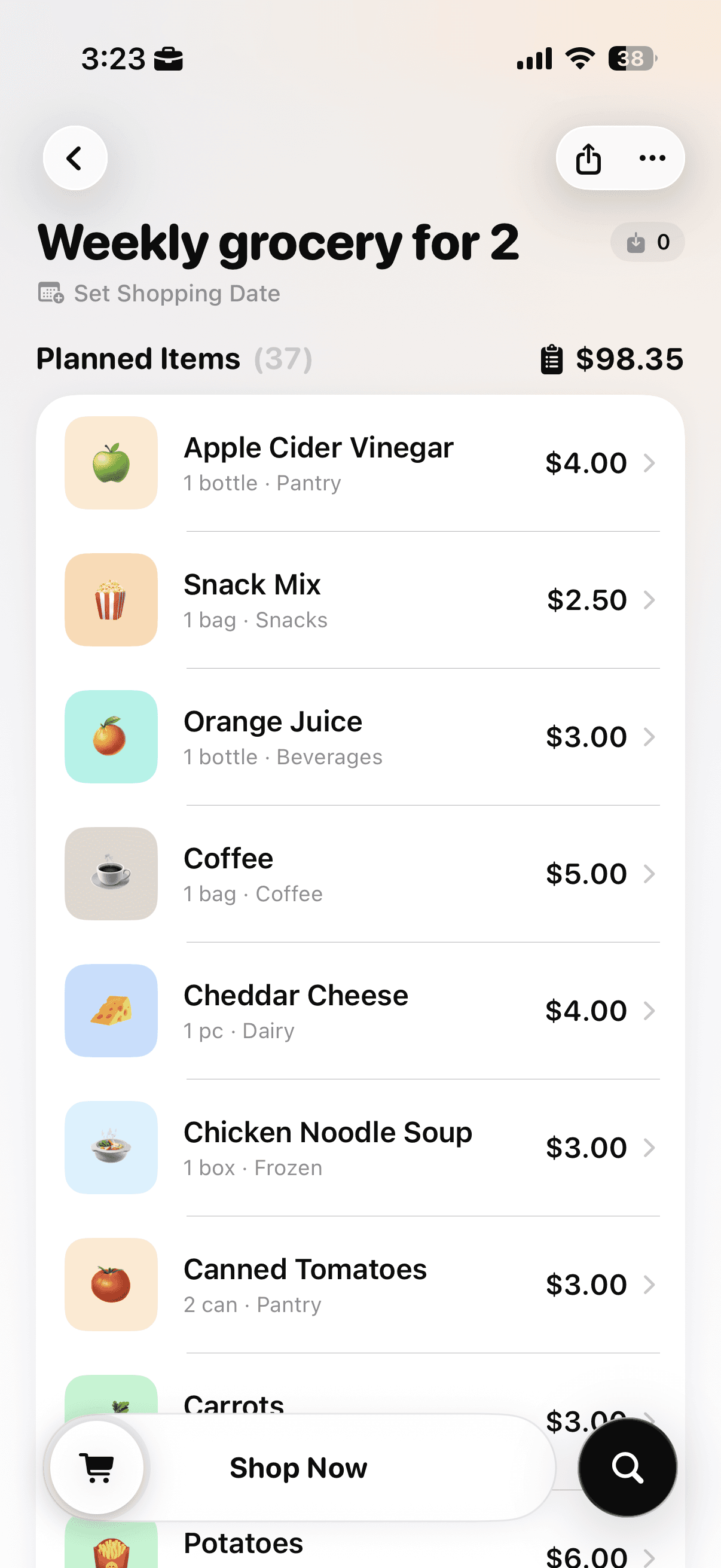
Review the generated items, quantities, categories, and estimated total before starting the trip.
If you want to turn that trip number into a practical item-by-item plan, use this budget grocery list guide before choosing the week’s meals.
For a neutral benchmark to compare with your own baseline, the USDA monthly food plan reports publish estimated food costs for several household plans.
If tracking the total is the part of budgeting that usually falls apart, try Cart AI on the App Store