
A grocery store is easier to navigate when the cart has an order of operations. Buy the ingredients that complete meals first, check the running total, then decide how much room remains for flexible products.
Start with the least flexible category
Begin with allergy-safe foods, infant products, a specific protein used across meals, or another item with few acceptable substitutes. Its real price determines flexibility elsewhere.
Shop meal anchors first
Choose the products that define dinner, such as chicken, beans, pasta, eggs, or tofu. Then add produce, grains, sauces, and dairy that complete those meals.
Group the list by store zone
Use produce, meat, dairy, frozen, pantry, and household groups. Fewer loops save time and reduce repeated exposure to displays. Keep frozen food near the end.
Make impulse items wait
Put an appealing unplanned item on a maybe list. Finish essentials first. Return only when the trip budget still has room. A short delay separates genuine interest from display pressure.
Check the cart three times
Review after meal anchors, around 80 percent of the limit, and before checkout. The first confirms that meals are affordable. The second protects unfinished categories. The last catches duplicates.
Group items to expose duplication
Five snacks added in different aisles can hide in a cart. When grouped together, a $42 snack total against a $120 trip becomes obvious. Choose the options that matter most and rotate the others next week.
Do not confuse unit price with affordability
A bulk package can have the lowest cost per ounce and still be wrong today. Consider cash required now, storage, and whether the household will use the full amount.
Make the final correction specific
If the cart is $14 over, remove a $6 drink and reduce an $8 duplicate. Avoid clearing random products. Precise changes preserve the original meal plan.
Finish with information
The checkout total should confirm the plan, not reveal it. Keep prices and quantities visible while shopping so the last aisle becomes a review instead of a guessing game.
Use the final cart review to connect the plan with the actual total before checkout.
Choose a route that matches your priorities
If produce is flexible but allergy-safe products are not, shop the allergy-safe section first. If meat prices determine the week’s meals, visit that department before buying supporting ingredients. The right route depends on which choices have the least room to change.
This is more useful than a universal rule to shop the perimeter. Rice, beans, oats, canned tomatoes, frozen vegetables, and spices often sit in middle aisles and can be some of the most practical budget foods.
Use the cart as a progress report
After each major zone, compare the running total with the portion of the list completed. If half the list is done and 70 percent of the budget is gone, pause. Look for a bulk item, unexpected price, or optional product creating the mismatch.
A quick correction early is easier than a complete rebuild at checkout. You can switch one dinner, choose a smaller package, or postpone a household product while alternatives are still nearby.
Give yourself permission to leave aisles
You do not need to walk every aisle. If the list has no products in the soda, bakery, or seasonal section, skip it. Fewer decisions reduce both time and impulse pressure.
When shopping with children or another adult, agree on the flexible amount before entering. One $8 choice is easier to manage than several separate additions that appear small.
Match the digital cart to the physical cart
Quantity errors can make a tracked total misleading. If you pick up two units, record two. If you put one back, update it immediately. Check the final five products before checkout.
For weighed produce, use the shelf estimate and leave a buffer. Accuracy does not need to be perfect to be useful, but the largest items and quantities should be correct.
How to use Cart AI from the first aisle to checkout
Open a trip and set the amount available for that shop. Add products with their prices as you move through the store. The overview shows the running cart total, remaining budget, and percentage used.
At the 80 percent checkpoint, compare the unfinished list with the money remaining. Near checkout, open Adjust Cart if you want help finding a precise correction. Review suggested removals and quantity reductions rather than removing random necessities.
Select changes until the projected total has enough room, then apply them and match the physical cart. If the cart already fits the plan, you can keep it as it is. The feature is a review tool, not an automatic command.
Make the next trip easier
Save the aisle order that worked and keep common staples grouped the same way on future lists. Repetition reduces the mental load of shopping and makes missing items easier to spot.
Review the receipt at home for only two things: the largest unexpected price and any unplanned purchase. Use those observations to improve the next list. You do not need to audit every cent.
If the store layout changes or a product is unavailable, return to meal roles. Choose another protein, vegetable, or grain that completes the same job instead of starting the plan over.
Over time, a reliable route, a visible total, and a short final review can turn a long stressful trip into a predictable routine.
How to use Adjust Cart before checkout
Keep Cart AI open as the physical cart moves through the store. Add prices and quantities so the overview reflects the real trip. Before checkout, compare the remaining budget with any items still missing and leave room for weighted produce or small price differences.
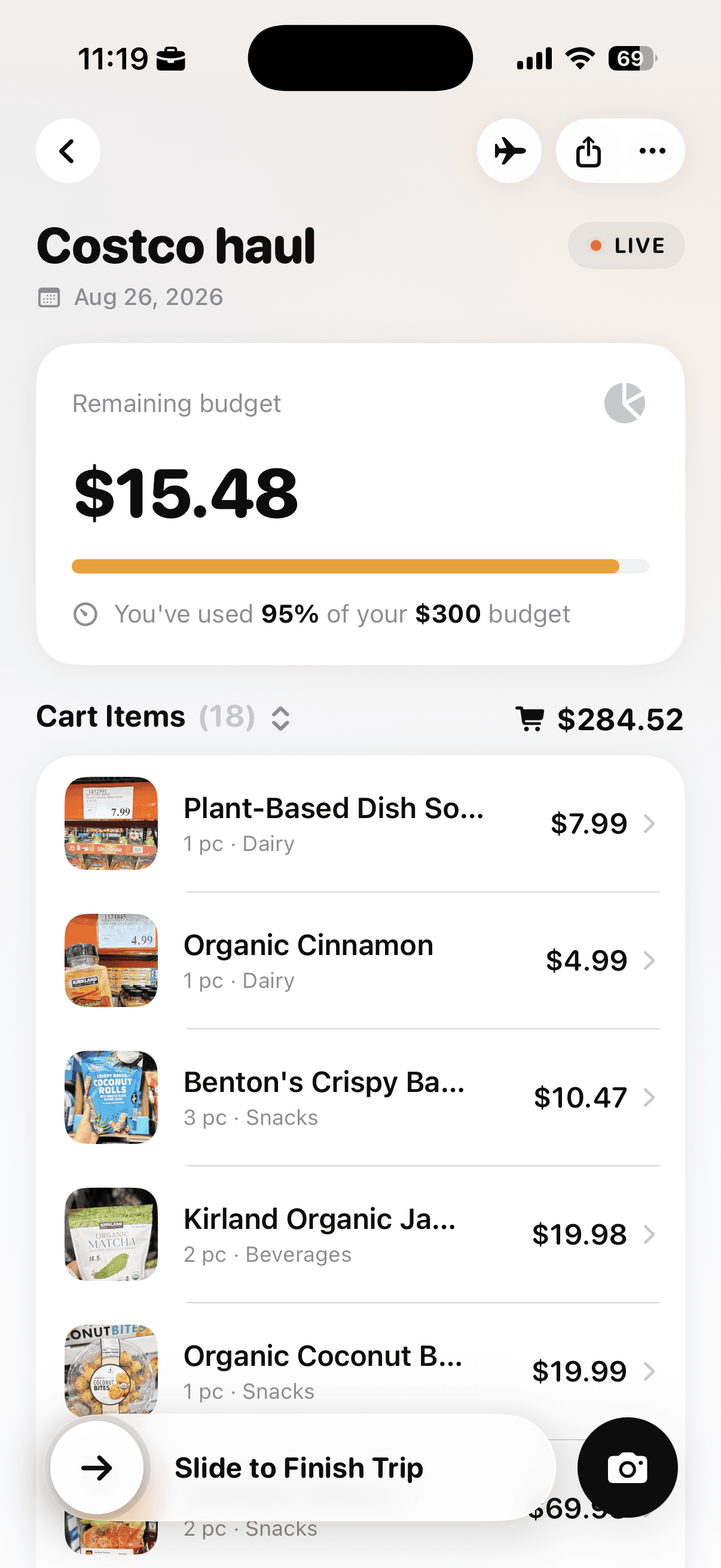
The trip overview shows the running cart total, remaining budget, and percentage of the limit used.
Tap the three-dot menu on the trip and choose Adjust Cart. The same menu also contains controls for the trip name, budget, sorting, categories, and list imports, but Adjust Cart is the option designed for reviewing possible savings.
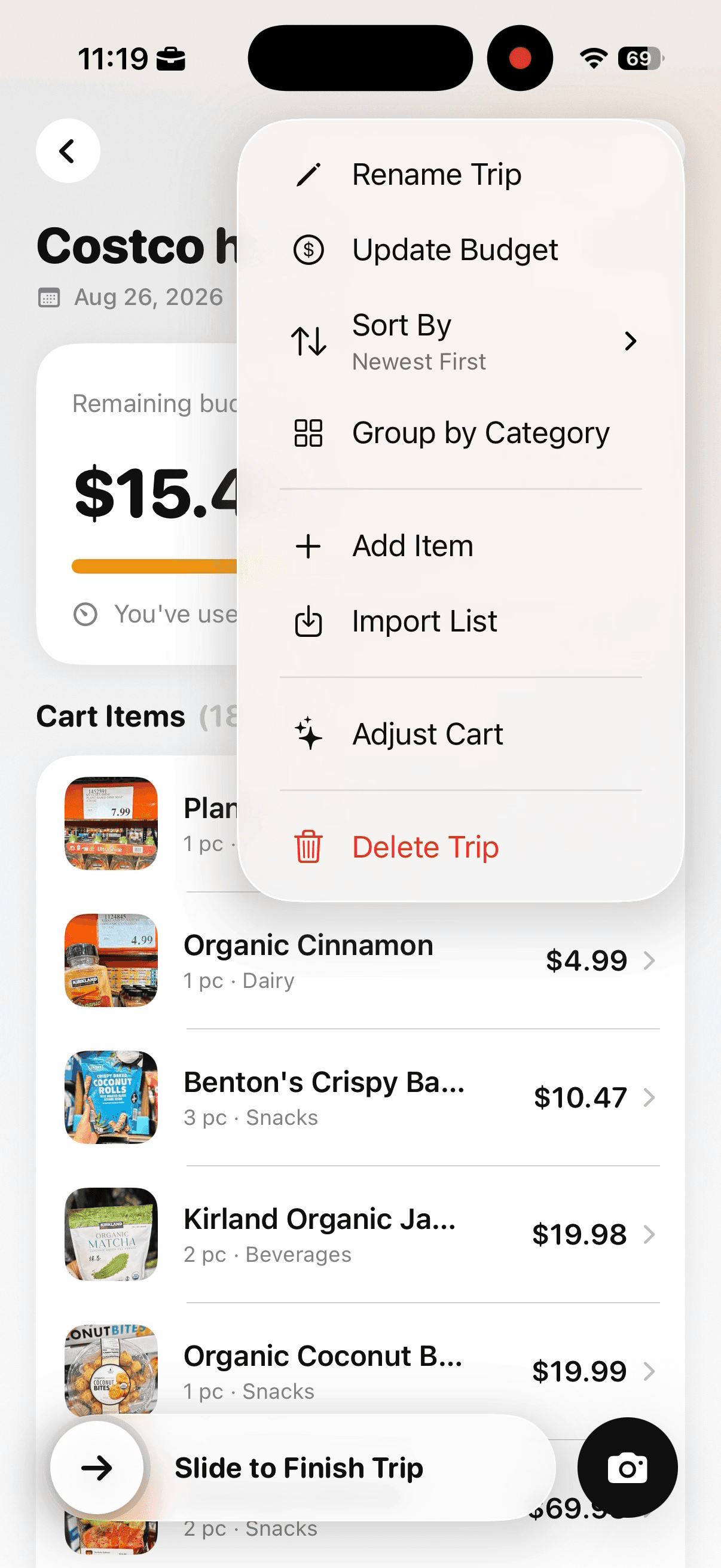
Open the trip menu and choose Adjust Cart when the total is near or above the amount planned.
Confirm that you want Cart AI to review the cart. The app explains that it will suggest smart ways to spend less. You can leave the flow without making changes, and no suggestion is applied at this stage.
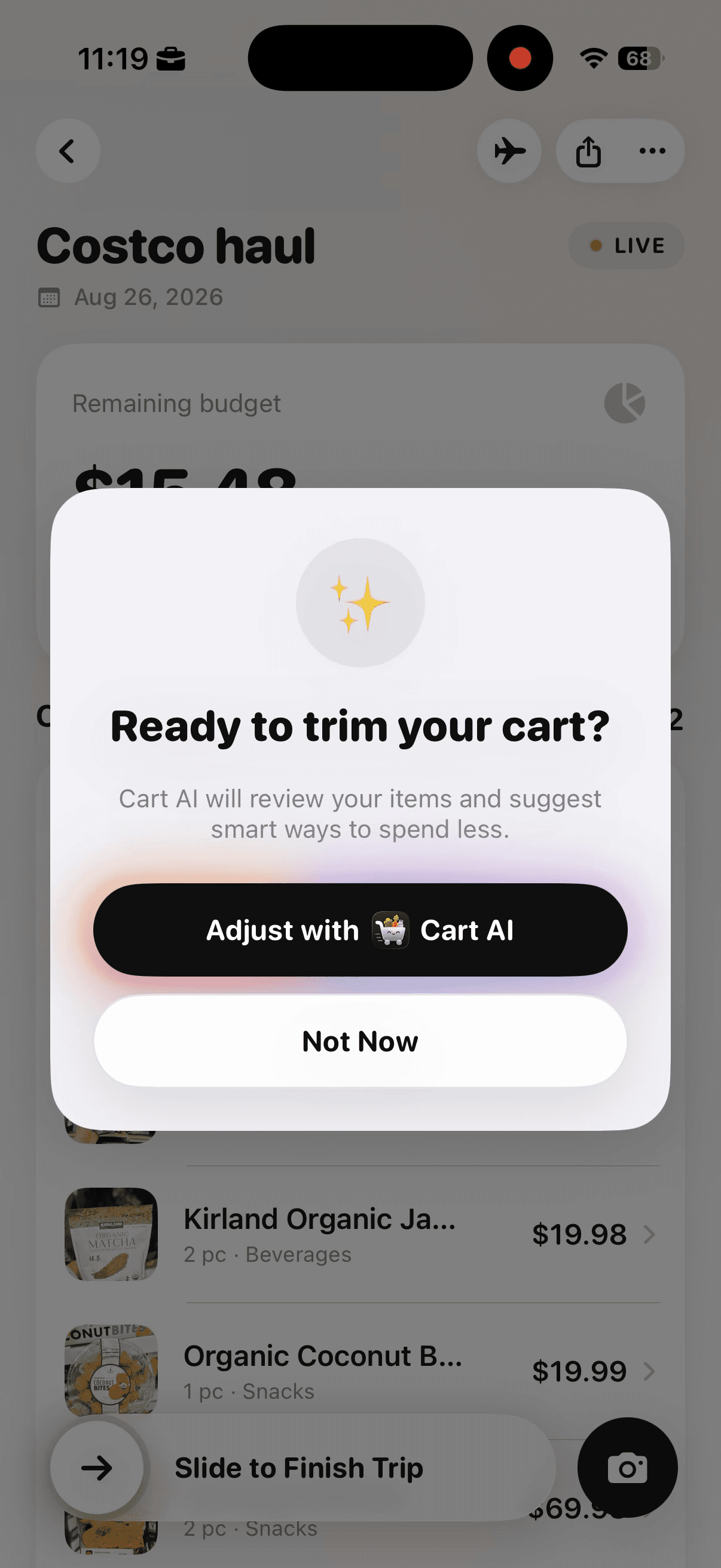
Cart AI asks for confirmation before reviewing the cart and suggesting ways to spend less.
On the adjustment screen, choose only suggestions that match what is physically in the cart and do not break planned meals. Optional products can be removed. Duplicate quantities can be reduced. The projected total updates as selections change, so you can stop when the cart has enough room.
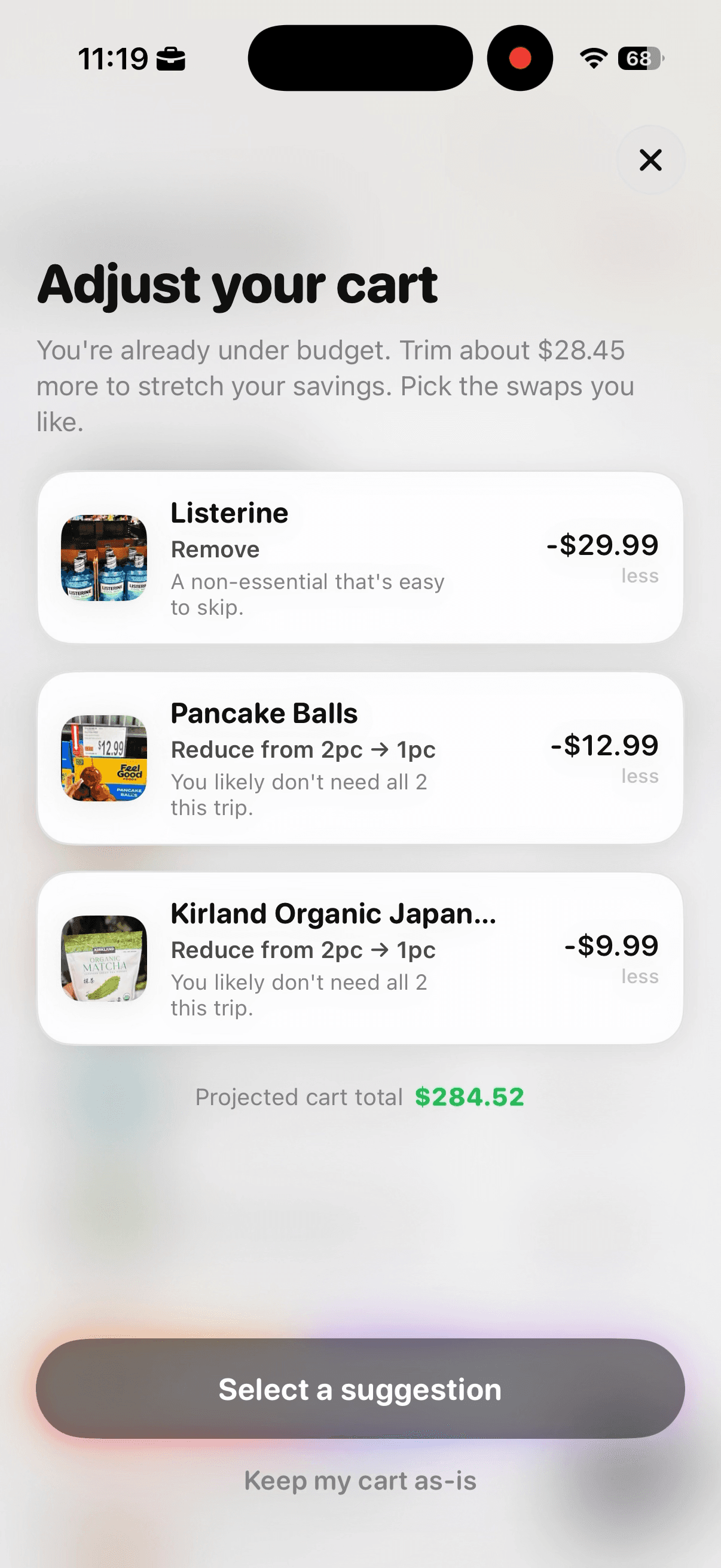
Review suggested removals and quantity reductions alongside their estimated savings.
Tap the suggestions you want to test. Selected cards are highlighted, and the projected cart total changes to reflect the combined savings. If the new total is still too close to the limit, add another suitable suggestion. If the total is comfortable, stop rather than cutting unnecessarily.
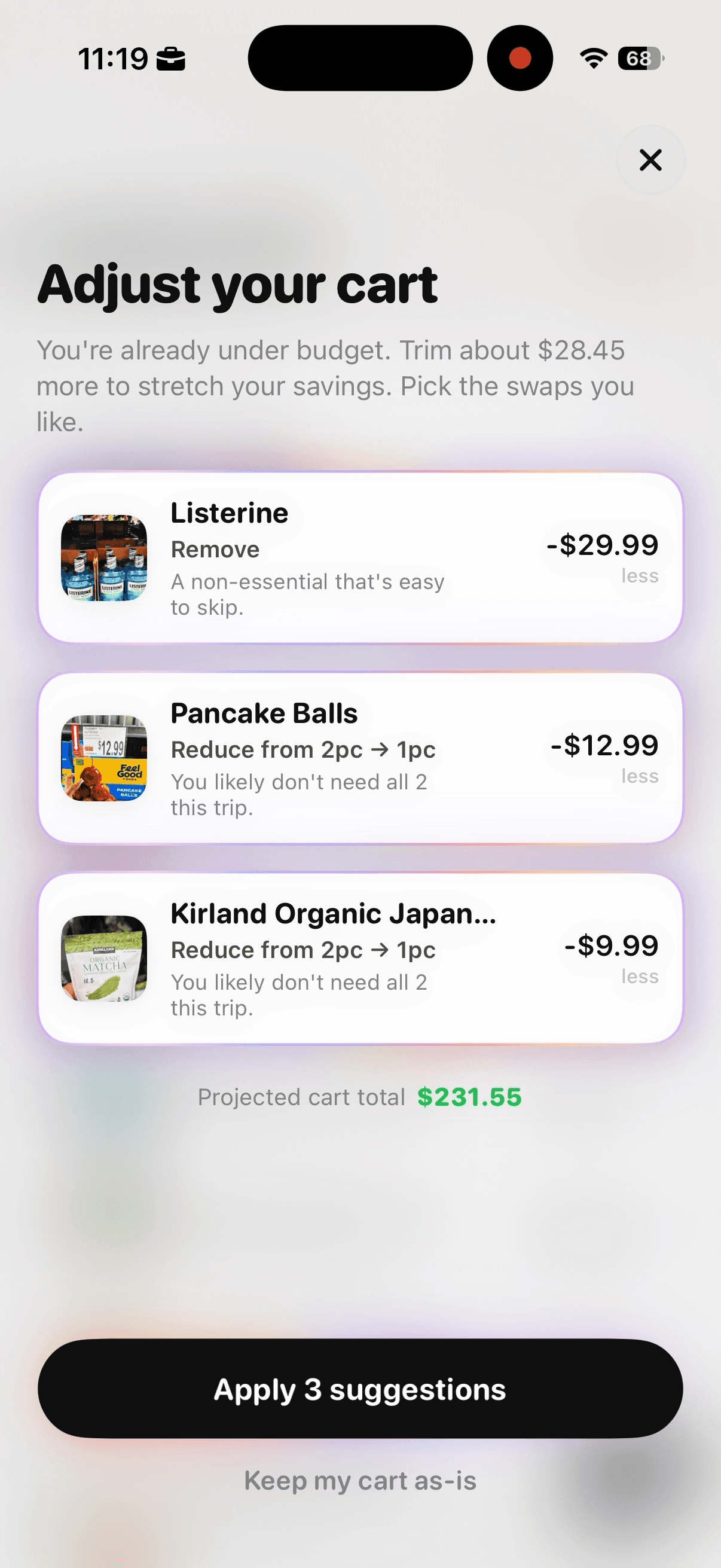
Select only the suggestions that fit the meal plan, then check the updated projected total.
After applying the suggestions, match the physical cart to the updated list. The confirmation shows how much was removed and how far the trip is under budget, giving you a final number before you move to checkout.
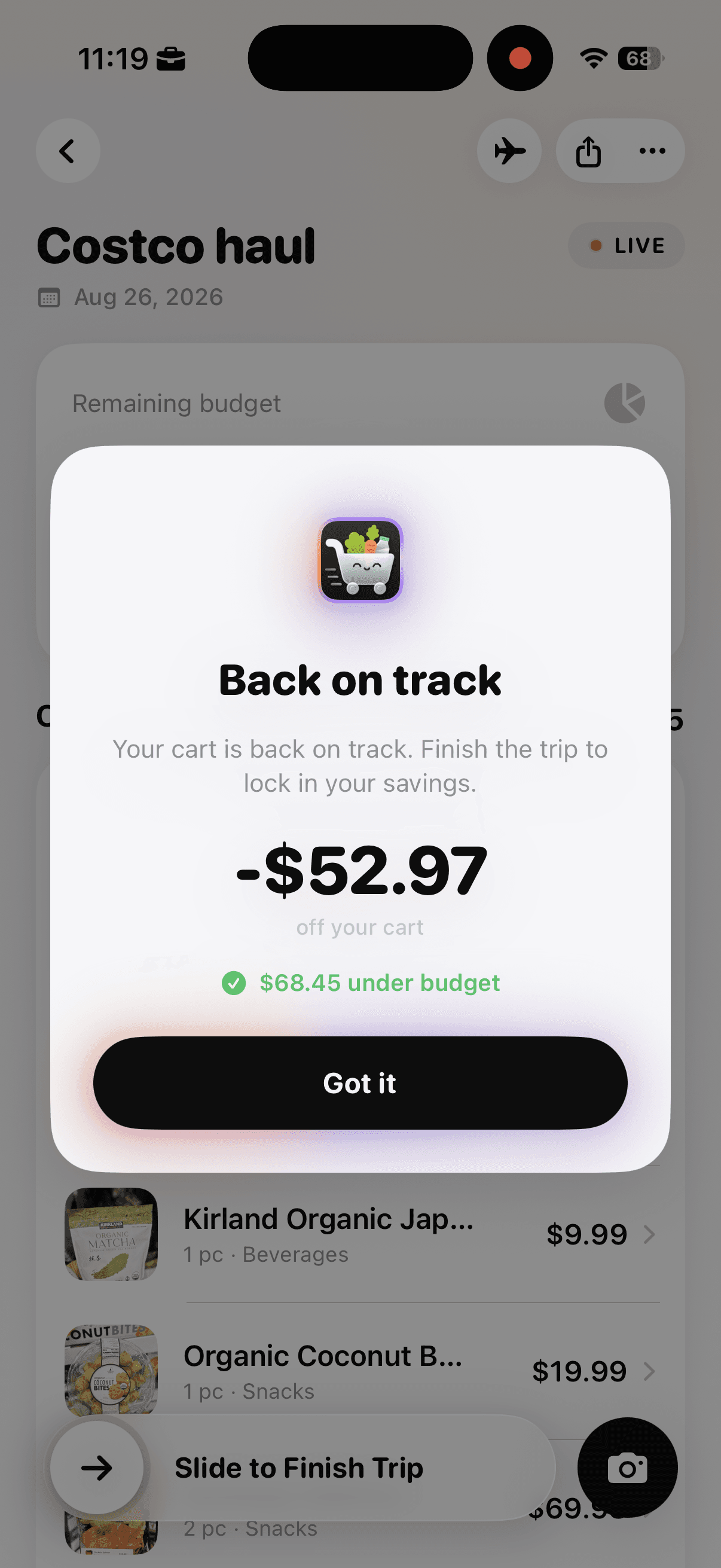
The confirmation summarizes the amount removed and the cart’s new position under budget.
A route through the store works better when it begins with a grocery list organized around meals and a spending limit rather than an unordered set of products.
For meal-planning context, USDA MyPlate offers a basic food-group framework that can be adjusted for preferences, budget, and dietary needs.
For a live budget check while moving through the store, try Cart AI on the App Store