
Budget grocery shopping gets easier when an over-budget cart is corrected deliberately. You can remove whole items or reduce quantities. Removing creates larger savings quickly, while reducing quantities usually protects the meal plan. Most carts need a mix.
Remove items with no clear job
Full removal works for products without a planned use, duplicate roles, or things that can wait. A $19 specialty drink mix can solve an $18 overage in one decision.
Reduce useful products bought in excess
Quantity reduction fits warehouse packs and multiple-item deals. Changing two $12.99 snack boxes to one saves $12.99 while keeping the snack.
Compare the effect on meals
Removing tortillas can break taco night. Reducing two yogurt tubs to one may change nothing. Ask what breaks before making the cut. If a meal breaks, look for another adjustment.
Compare the effect on waste
Lower quantities often make sense for produce, dairy, bakery items, and fresh meat. A lower price per ounce is not a saving when the unused portion expires.
Compare the effort
One clear removal is faster. Several quantity changes offer control. Use the obvious single cut for a small overage. Use detailed reductions when bulk sizes caused the problem.
A $52.97 example
Remove a $29.99 nonessential multipack. Reduce a $12.99 product from two units to one. Reduce a $9.99 product from two to one. Together the changes save $52.97 while preserving two useful products.
Follow a decision order
Protect meal anchors. Remove products with no planned use. Reduce duplicate quantities. Swap versions only when the alternative still meets the need. Change the meal plan last.
Which method wins?
Removal is best for clear extras. Quantity reduction is best for overbuying. The right correction reaches the limit with the fewest consequences for meals, storage, and the next trip.
Use the final cart review to connect the plan with the actual total before checkout.
Use removal for duplicate roles
A cart may contain chips, crackers, popcorn, pretzels, and snack bars. Each product is different, but several serve the same role. Removing one full product is often painless because the household still has alternatives.
The same applies to drinks, desserts, cleaning products, and convenience meals. Review by role, not only by product name.
Use reduction when the first unit matters
The first package may cover the week while the second is only future inventory. This is common with yogurt, cereal, frozen food, beverages, produce, and warehouse packs. Keeping one preserves variety and removes the immediate cost of the duplicate.
Quantity reduction is also useful when a sale encourages buying more than the storage plan can handle. A discount does not make freezer space larger.
Do not cut by price alone
The most expensive item is not automatically the best removal. A $24 protein used in four meals may deliver more value than three $7 snacks. Compare cost with the number of planned uses.
A good adjustment removes the least useful dollars, not simply the largest price tag. That is why the meal plan must stay visible during the review.
Set a stopping point
Once the projected cart sits below the limit with a reasonable buffer, stop cutting. Continuing because more savings are available can leave the week underplanned and create another store visit.
For a $150 limit, a projected $143 total may be enough. The remaining $7 can cover weighted produce or a small price error.
How to compare both choices in Cart AI
Track the cart against the trip budget until you are ready for the final review. Open Adjust Cart from the trip menu. Cart AI may present a full removal for a nonessential product and a quantity reduction for an item where one unit is likely enough.
Select a suggestion to see how it changes the projected total. You can choose one, several, or keep the cart as it is. Compare the new number with the effect on meals and storage rather than automatically applying every option.
When the selected changes create enough room, apply them and update the physical cart. The confirmation summarizes the amount removed and how far the trip is under budget, so you can finish shopping with a clear total.
A quick decision table for the aisle
Remove the whole item when it is optional, duplicates another role, or has no planned use. Reduce quantity when one unit is useful but the extra units are only future inventory. Keep the original amount when it completes several meals and there is no practical replacement.
If two choices seem equal, prefer the one that reduces waste and avoids another trip. A slightly more expensive staple used in four meals can be more valuable than a cheaper product used once.
After the trip, note which adjustment felt painless. That item or category can become your first review point next time, making future corrections faster and less emotional.
How to use Cart AI to test the options
Open Adjust Cart, select one suggested change, and look at the projected total. Add or remove selections until the savings are enough. Apply only the combination that keeps the week’s meals intact.
The physical effort matters too. Large packages are harder to carry, store, portion, and remember. If reducing a quantity makes the trip easier and prevents food from disappearing at the back of a cabinet, the benefit is larger than the checkout saving alone. Good budget choices should simplify the week as well as lower the total.
How to compare removals and quantity cuts in Cart AI
Track the cart with its trip budget and accurate quantities. The overview gives you the starting total before any adjustment. This matters because the goal is to reduce only enough to create a safe buffer, not to remove products without a clear reason.
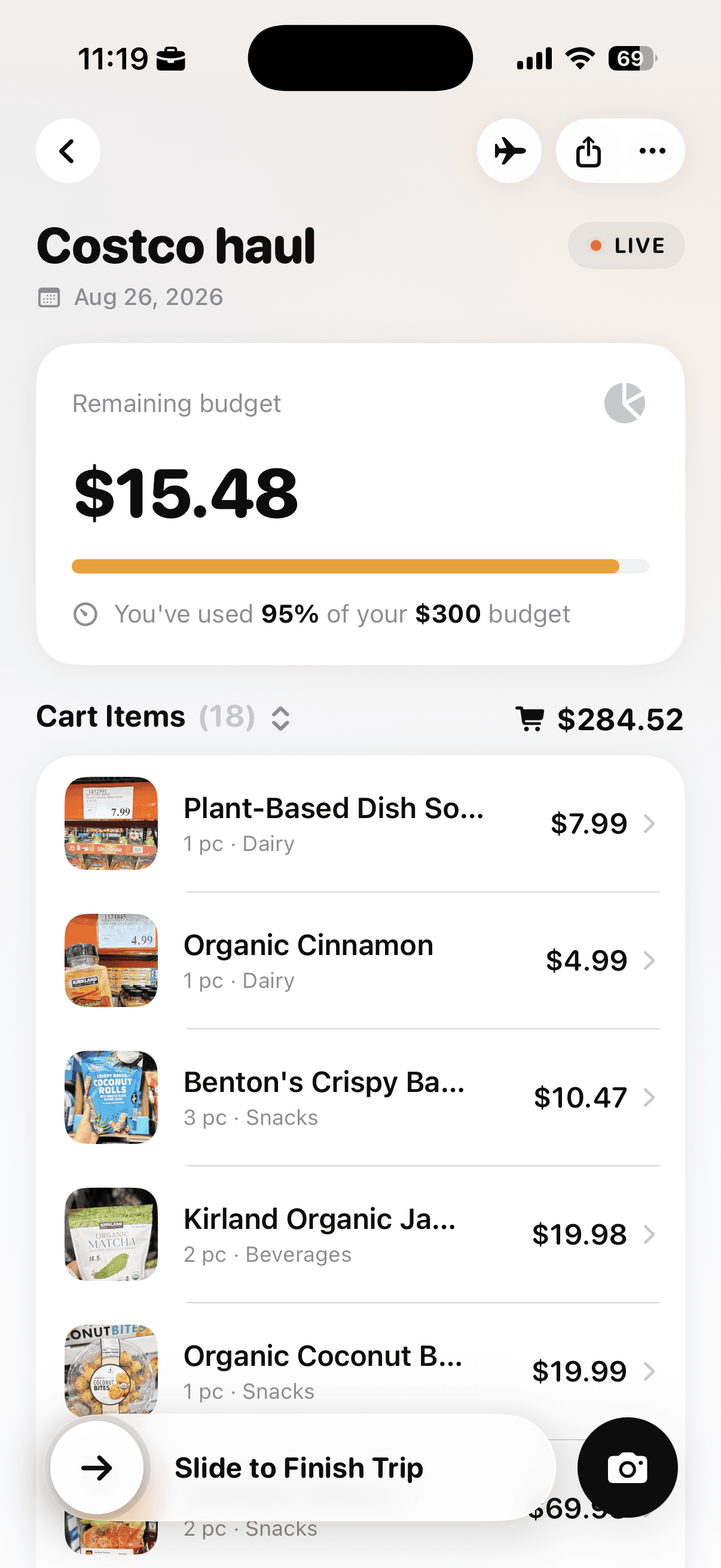
The trip overview shows the running cart total, remaining budget, and percentage of the limit used.
Tap the three-dot menu on the trip and choose Adjust Cart. The same menu also contains controls for the trip name, budget, sorting, categories, and list imports, but Adjust Cart is the option designed for reviewing possible savings.
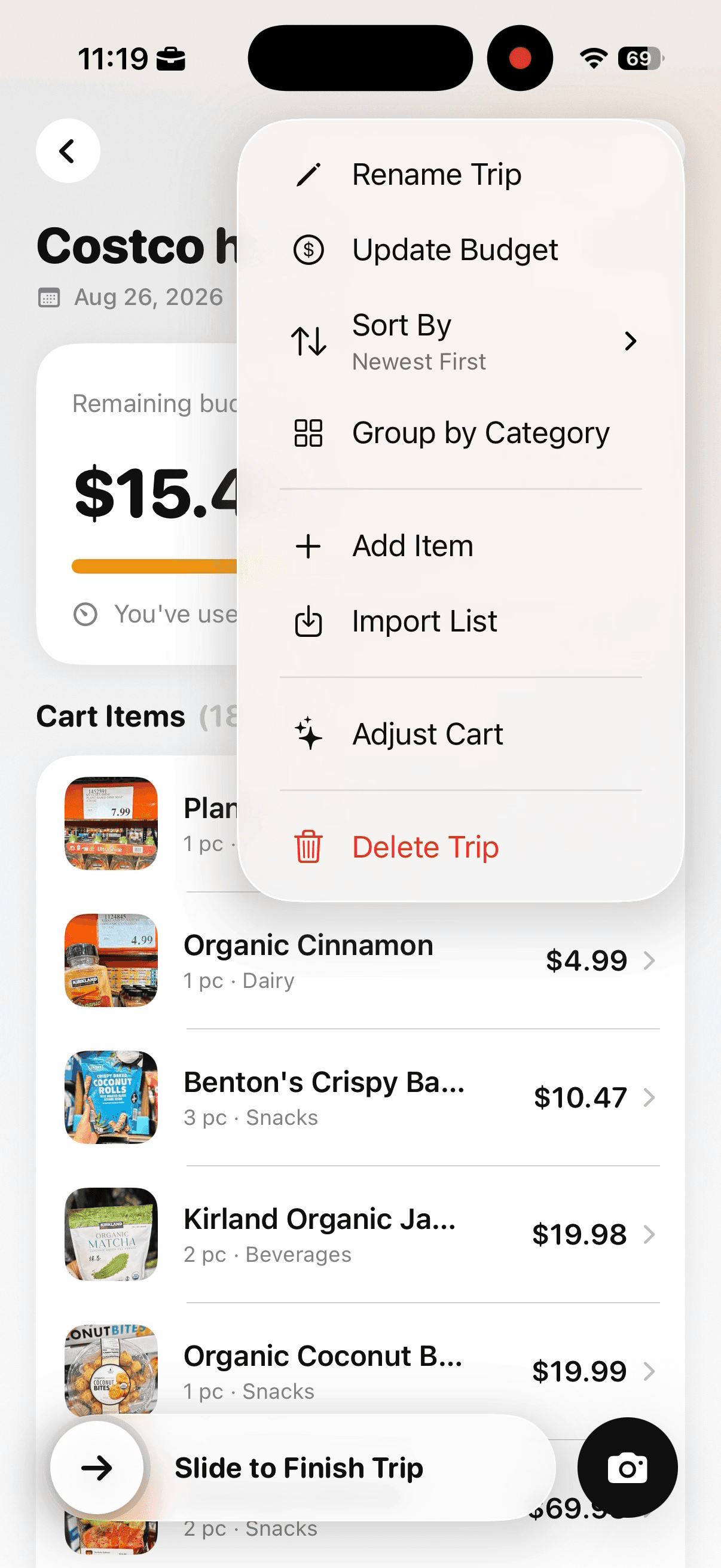
Open the trip menu and choose Adjust Cart when the total is near or above the amount planned.
Confirm that you want Cart AI to review the cart. The app explains that it will suggest smart ways to spend less. You can leave the flow without making changes, and no suggestion is applied at this stage.
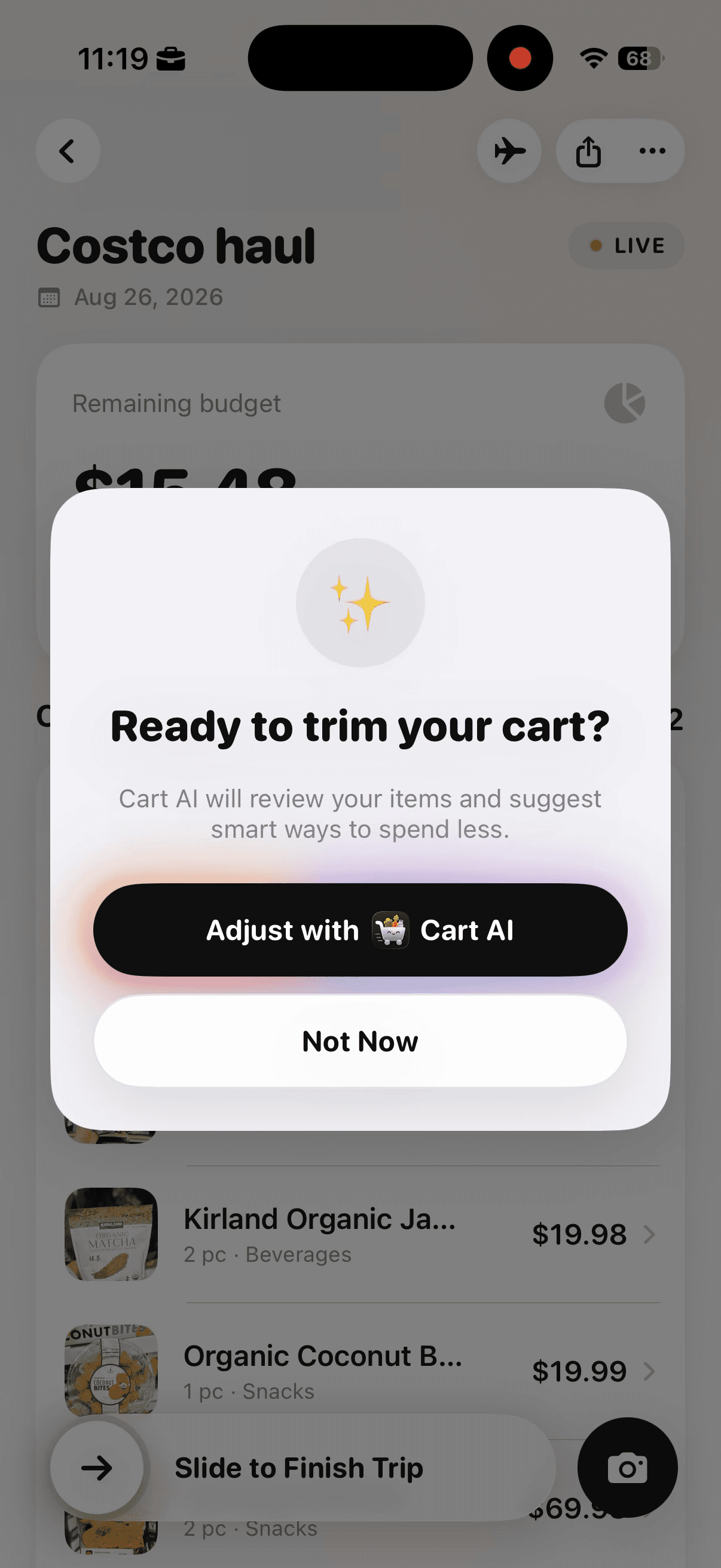
Cart AI asks for confirmation before reviewing the cart and suggesting ways to spend less.
The suggestion screen places full removals and quantity reductions together. Compare what each change saves with what it does to the week. Removing a nonessential product creates a larger immediate cut. Reducing two units to one preserves access to the item while removing excess.
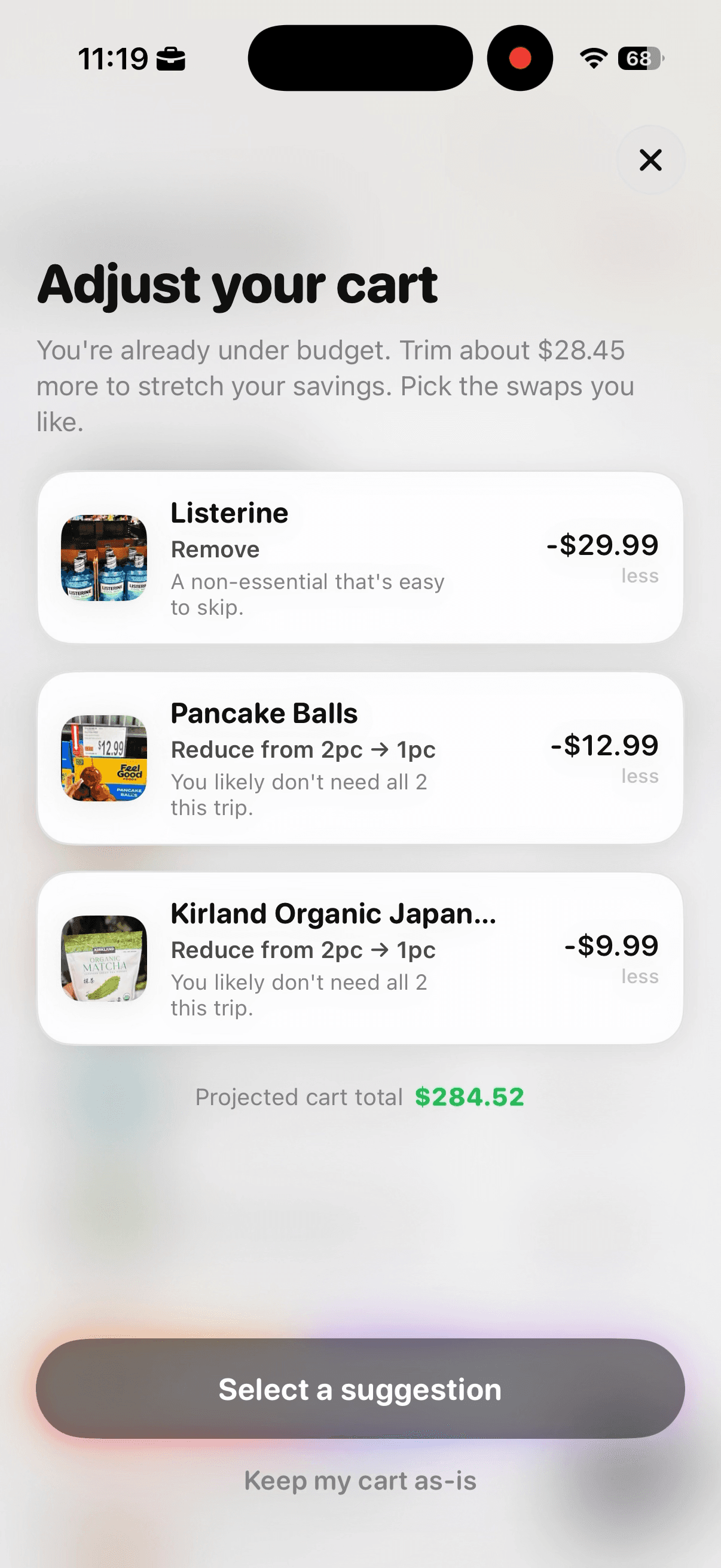
Review suggested removals and quantity reductions alongside their estimated savings.
Tap the suggestions you want to test. Selected cards are highlighted, and the projected cart total changes to reflect the combined savings. If the new total is still too close to the limit, add another suitable suggestion. If the total is comfortable, stop rather than cutting unnecessarily.
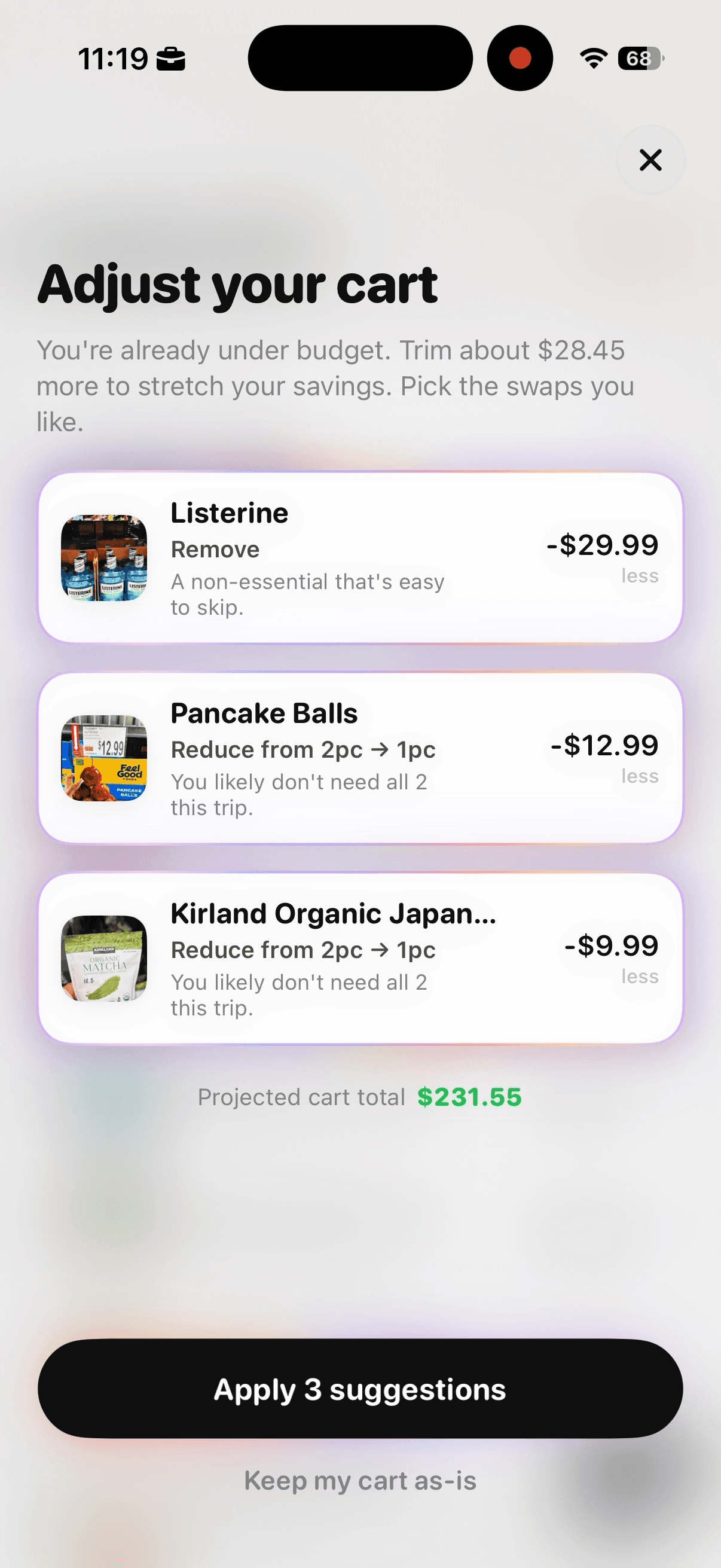
Select only the suggestions that fit the meal plan, then check the updated projected total.
The final confirmation shows the combined amount removed and the new distance below the trip budget. Use it to confirm that the chosen mix solved the overage without cutting more than the plan required.
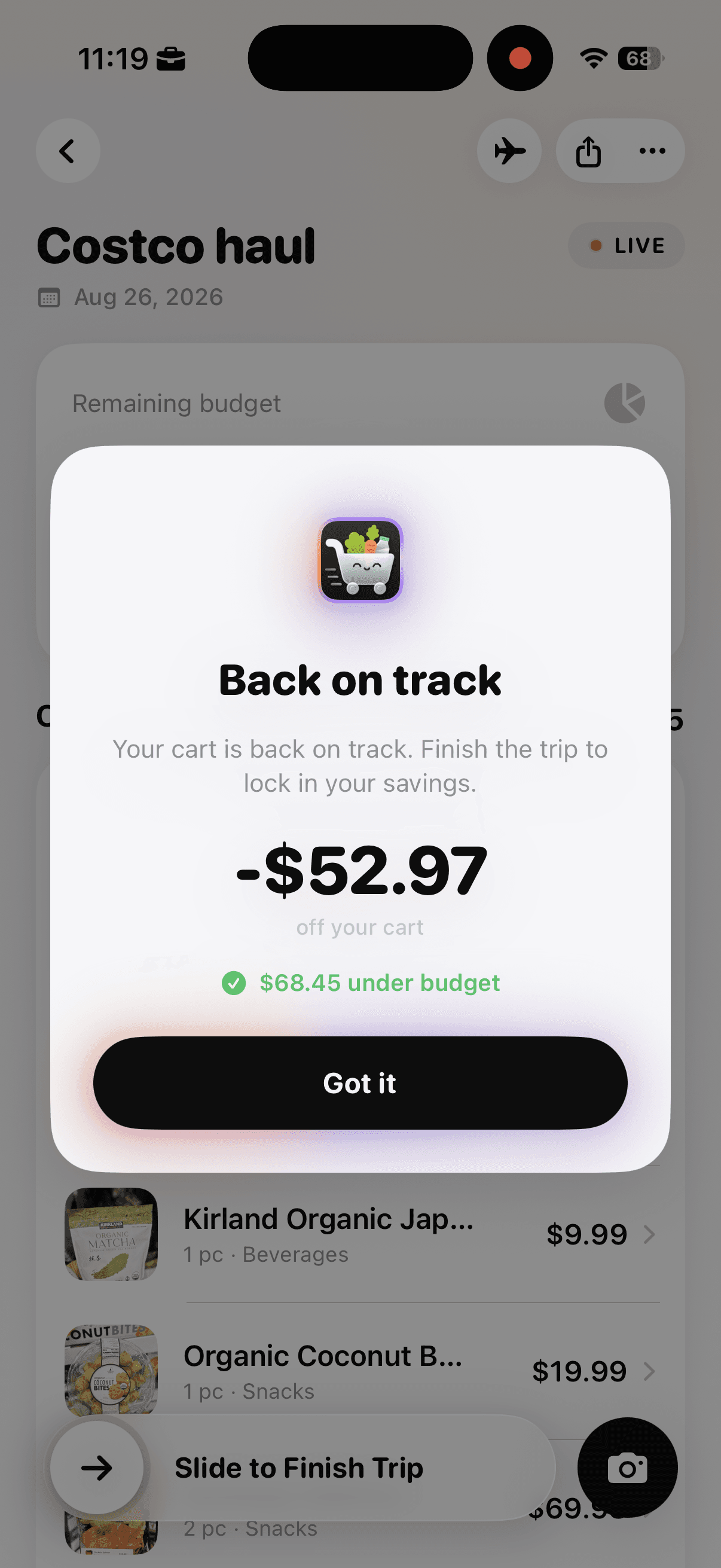
The confirmation summarizes the amount removed and the cart’s new position under budget.
This decision is easier when every item already has a job, as shown in the grocery list budgeting walkthrough used for planning before the store.
When a quantity reduction involves perishable food, the USDA’s freezing and food safety guidance can help you decide whether the extra amount can be stored safely instead of removed.
To compare precise cart changes without doing several rounds of subtraction, try Cart AI on the App Store