
Do not choose a monthly grocery budget from a chart and hope your household fits it. Start with real spending, define what counts, choose a modest reduction, and divide the result into trip limits with a buffer.
Step 1: calculate the baseline
Collect four to eight weeks of supermarket, warehouse, market, and fill-in transactions. Exclude restaurant meals. Split household products when you want a food-only total.
Step 2: identify the costly pattern
Look for warehouse spikes, repeated small trips, drinks, duplicate snacks, or convenience items. A household spending $760 might find $90 in fill-in visits and duplicated products, making a $700 target realistic.
Step 3: lower it modestly
Reduce the baseline by 5 to 10 percent. From $640, start between $576 and $608. Use the higher number during months with guests, school lunches, or more meals at home.
Step 4: reserve a buffer
Keep 10 to 15 percent unassigned. On a $600 plan, a $75 buffer leaves $525 for planned shops. Four trips can sit near $130 while the reserve covers a fifth week or missing staple.
Step 5: overlap ingredients
Roasted vegetables can become a side, bowl topping, and soup ingredient. Chicken can cover tacos and lunches. Shared ingredients reduce the number of products and forgotten half-packages.
Step 6: track before checkout
For a $130 trip, pause near $104. If dairy, fruit, and a dinner protein are missing, the optional drink or bulk snack should wait.
Step 7: correct with precision
Remove duplicate roles, nonessential drinks, oversized quantities, and products without a planned use. If the cart is $11 over, reducing two duplicates is better than removing a dinner ingredient.
Step 8: review monthly
Compare target and actual spending. Adjust for lasting changes rather than one unusual stock-up trip. The best budget is not the smallest. It is the one that makes tradeoffs clear and can be repeated.
Use the final cart review to connect the plan with the actual total before checkout.
Convert the plan into four spending buckets
After choosing the monthly number, divide it into meal ingredients, breakfast and lunch staples, flexible food, and a reserve. The percentages can change by household, but naming the buckets stops treats or bulk purchases from quietly using money intended for dinners.
A $600 example might use $330 for dinner ingredients, $120 for breakfast and lunch staples, $75 for flexible food, and $75 as reserve. This is not a strict accounting system. It is a quick way to see where pressure is coming from.
Handle five-week months correctly
A calendar month is not four neat weeks. If you spend one fourth of the budget every seven days, some months will run out early. Either calculate a weekly amount using 4.33 weeks or protect a fifth-week reserve.
With $600 per month, dividing by 4.33 gives about $138 per week. If you prefer four main trips, keep part of the budget untouched until the month’s final days.
Plan for stock-up items
Oil, rice, spices, freezer food, and paper products do not run out evenly. Keep a short stock-up list and choose one or two each month rather than replacing everything during the same trip.
If a $22 oil purchase will last three months, note that when reviewing the month. The trip is high, but the product should reduce spending later. This prevents overreacting to one receipt.
Use a realistic meal count
Count how many meals will be eaten at home, including lunches. Subtract travel days, planned restaurant meals, school meals, and events. Add quick options for nights when cooking time is limited.
A family planning seven ambitious dinners may waste more than one planning five dinners, one leftover night, and one easy freezer meal. Accuracy is more valuable than aspiration.
How to use Cart AI with a monthly grocery budget
Keep the monthly plan outside the app if that is how you manage all household categories, then create a Cart AI trip for each shop. Give the trip its share of the monthly budget. This turns the big monthly target into a number you can act on in the aisle.
Add items and prices during the shop. The remaining-budget card shows how much of the trip limit is left. If the cart is close, open Adjust Cart and review suggested removals or quantity reductions.
Select only changes that do not break the meal plan. Check the projected total, apply the chosen suggestions, and leave a small buffer for weighted produce or a missed item. Repeat this for each trip, then compare the completed trip totals with the monthly plan.
Use the first month as a test
Treat the first target as a working estimate. Record each trip, including small top-up shops that are easy to forget. At month end, compare the planned amount, actual spending, food waste, and any meals bought outside the grocery budget because food ran out.
If the budget missed by $20 but the pantry gained several staples, keep the target another month. If it missed by $100 because the weekly limit was unrealistic, adjust it. The goal is an honest system that improves, not a perfect number on the first attempt.
After two or three months, the pattern should become clearer. Seasonal changes will still happen, but your typical trip size and most expensive categories will be easier to predict.
How to adjust a grocery trip with Cart AI
Create a Cart AI trip using the spending limit assigned from your monthly grocery budget. Add each product with its actual quantity and price. The trip overview shows the cart total, remaining budget, and percentage used, making it easier to see whether this shop still fits the month.
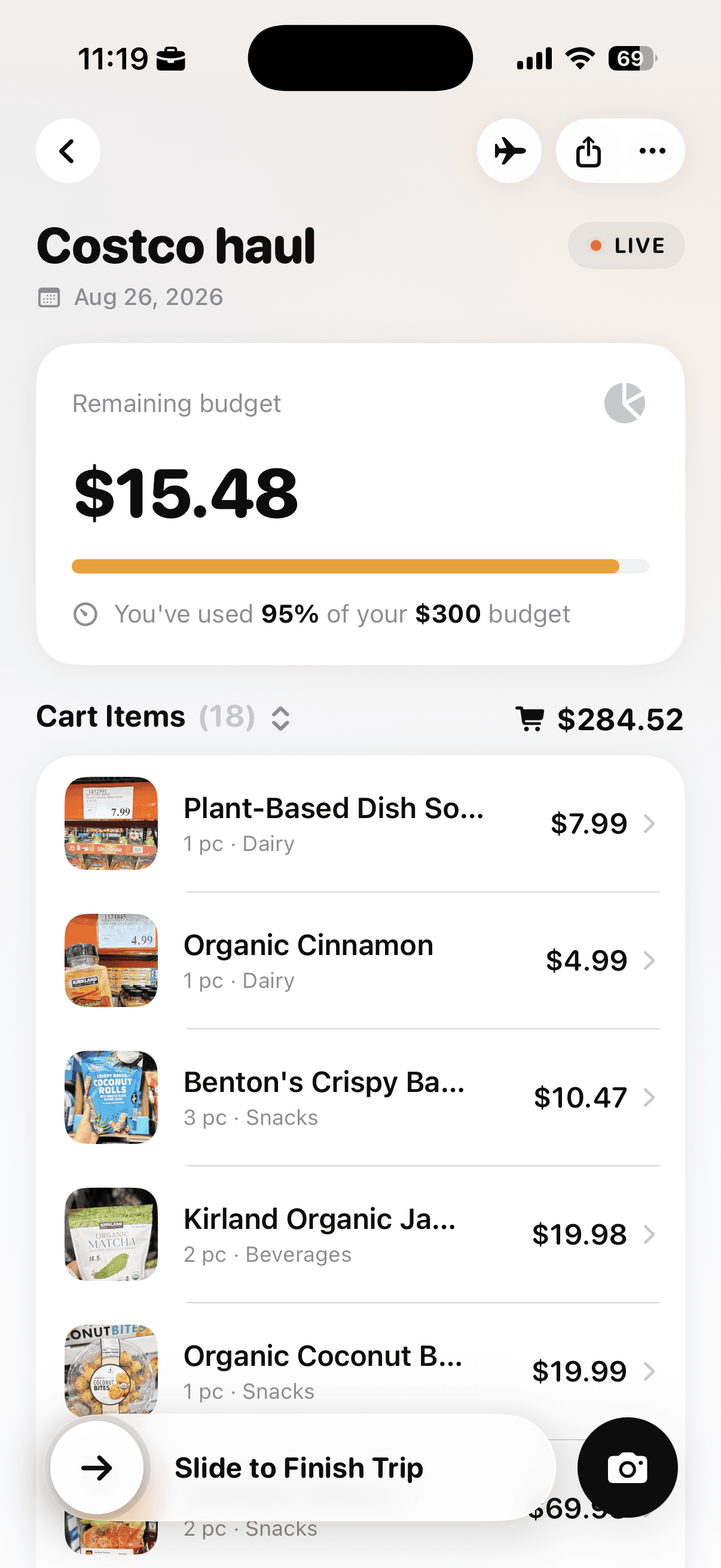
The trip overview shows the running cart total, remaining budget, and percentage of the limit used.
Tap the three-dot menu on the trip and choose Adjust Cart. The same menu also contains controls for the trip name, budget, sorting, categories, and list imports, but Adjust Cart is the option designed for reviewing possible savings.
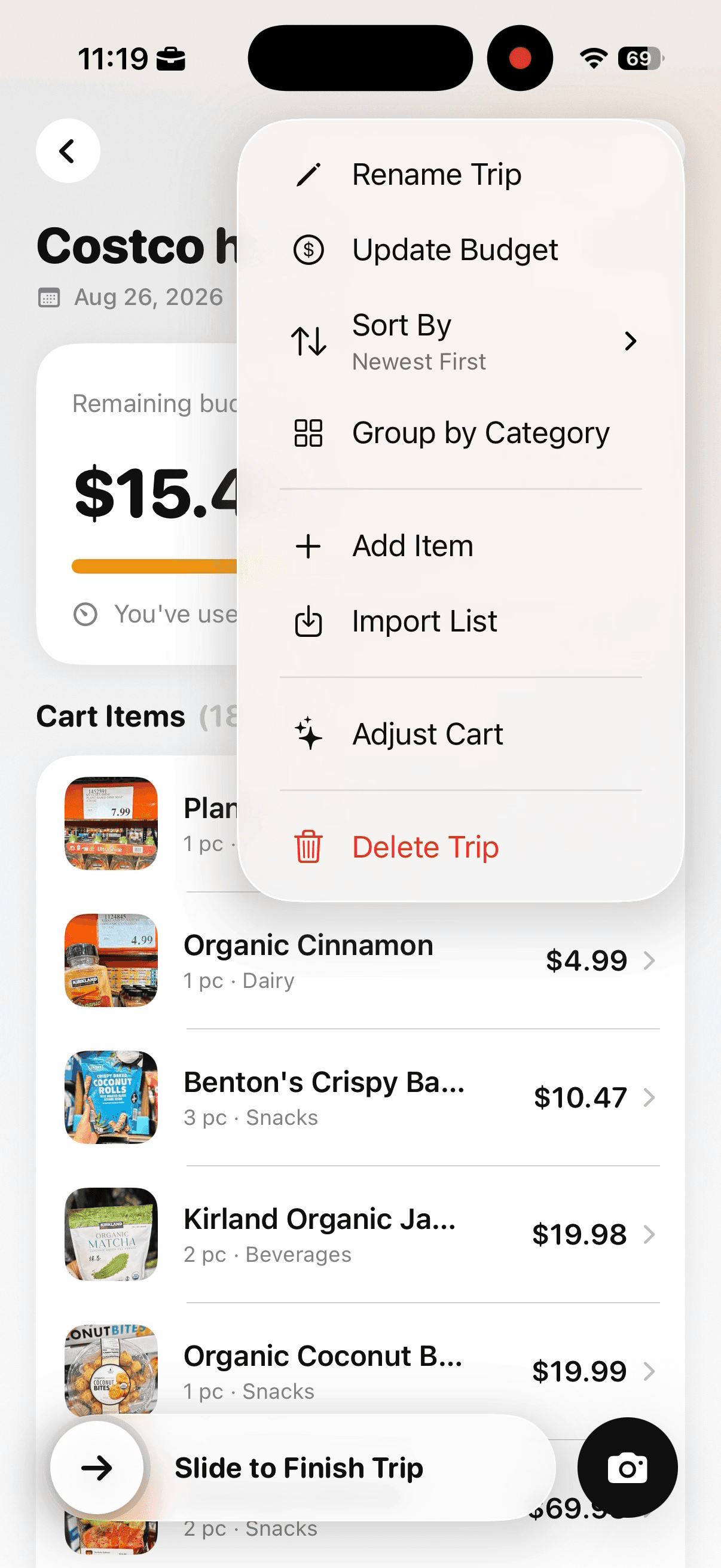
Open the trip menu and choose Adjust Cart when the total is near or above the amount planned.
Confirm that you want Cart AI to review the cart. The app explains that it will suggest smart ways to spend less. You can leave the flow without making changes, and no suggestion is applied at this stage.
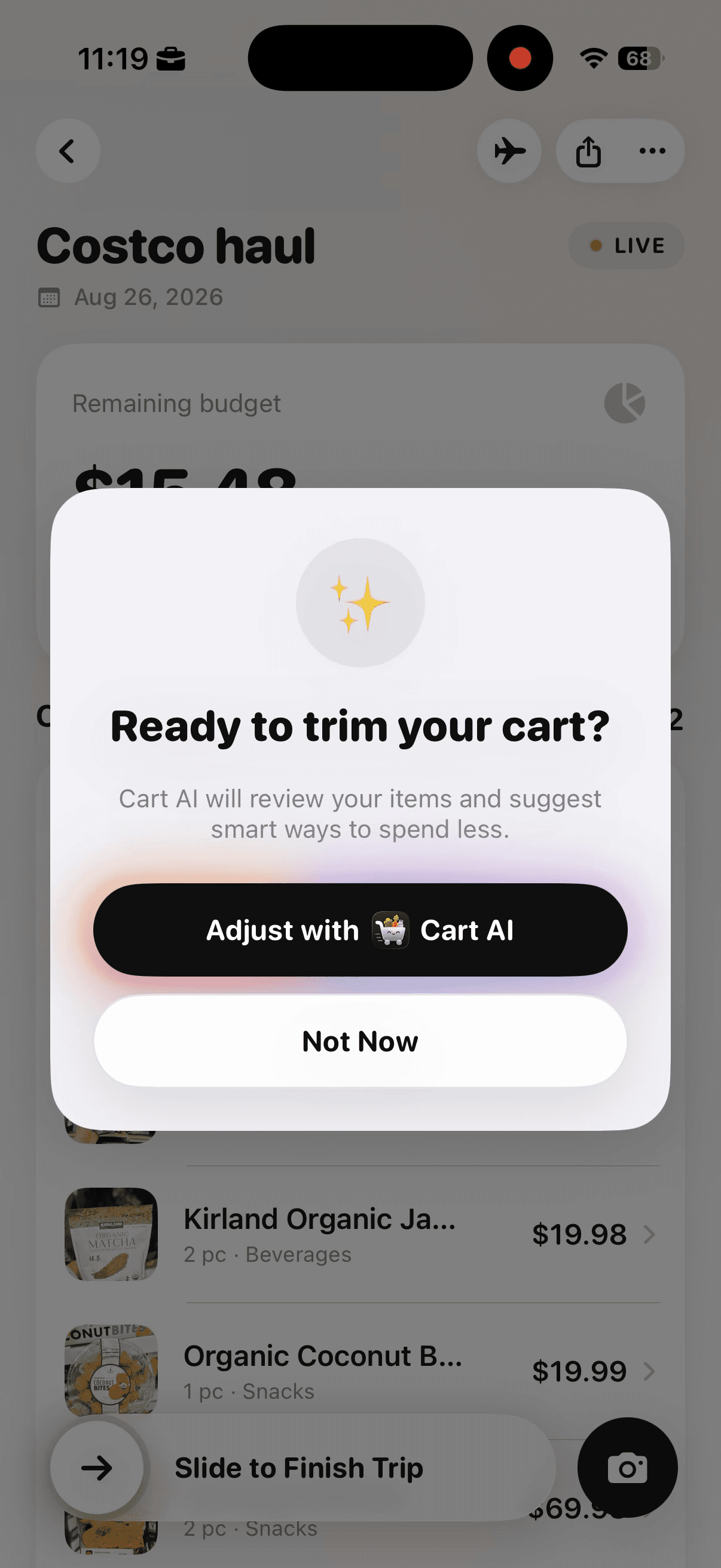
Cart AI asks for confirmation before reviewing the cart and suggesting ways to spend less.
Review each suggestion against the meal plan and the monthly spending buckets. A removal may be appropriate for a nonessential product. A quantity reduction may be better when the first unit is useful but the second unit would consume money reserved for a later trip.
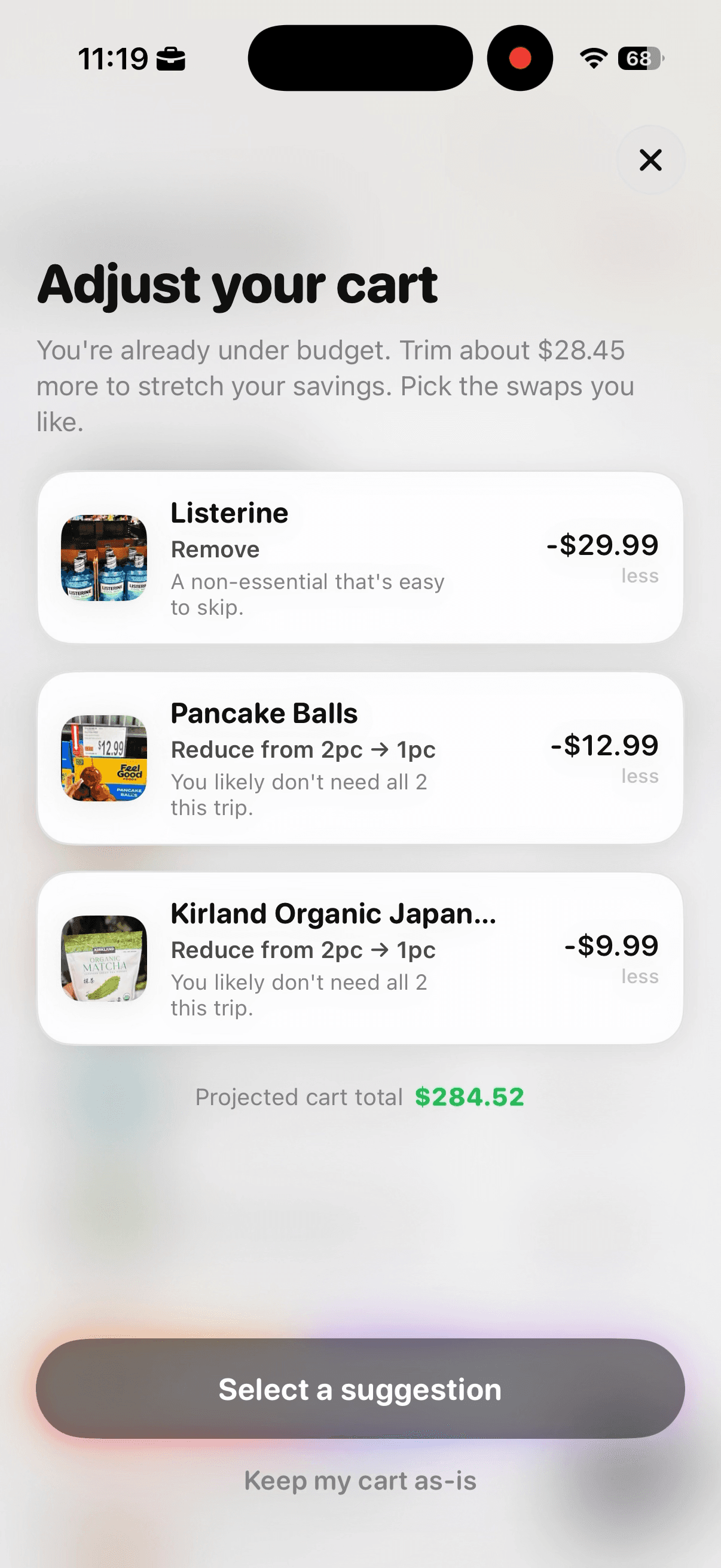
Review suggested removals and quantity reductions alongside their estimated savings.
Tap the suggestions you want to test. Selected cards are highlighted, and the projected cart total changes to reflect the combined savings. If the new total is still too close to the limit, add another suitable suggestion. If the total is comfortable, stop rather than cutting unnecessarily.
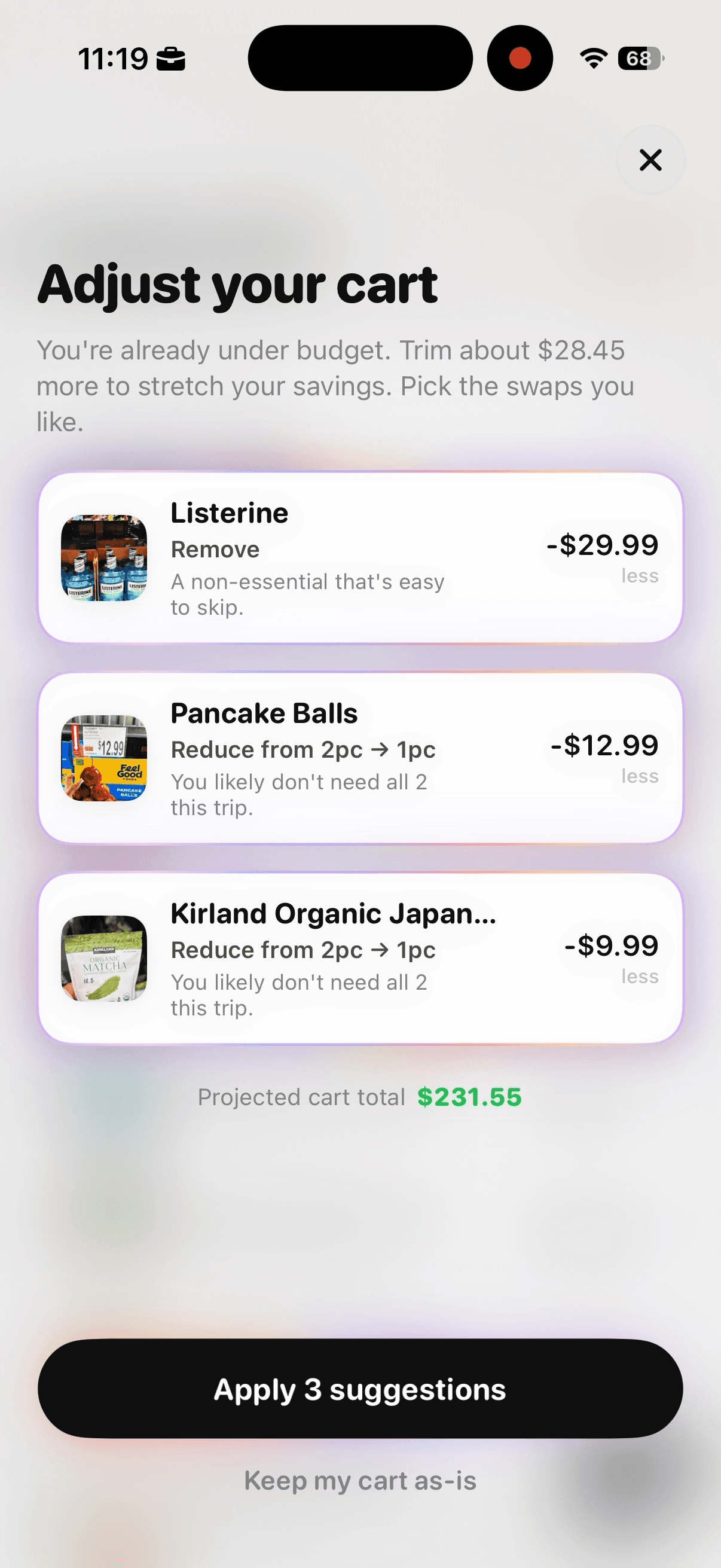
Select only the suggestions that fit the meal plan, then check the updated projected total.
After applying the selected changes, use the confirmation to record the final trip amount against the monthly budget. The amount under budget can remain in the monthly reserve rather than becoming permission to add another product.
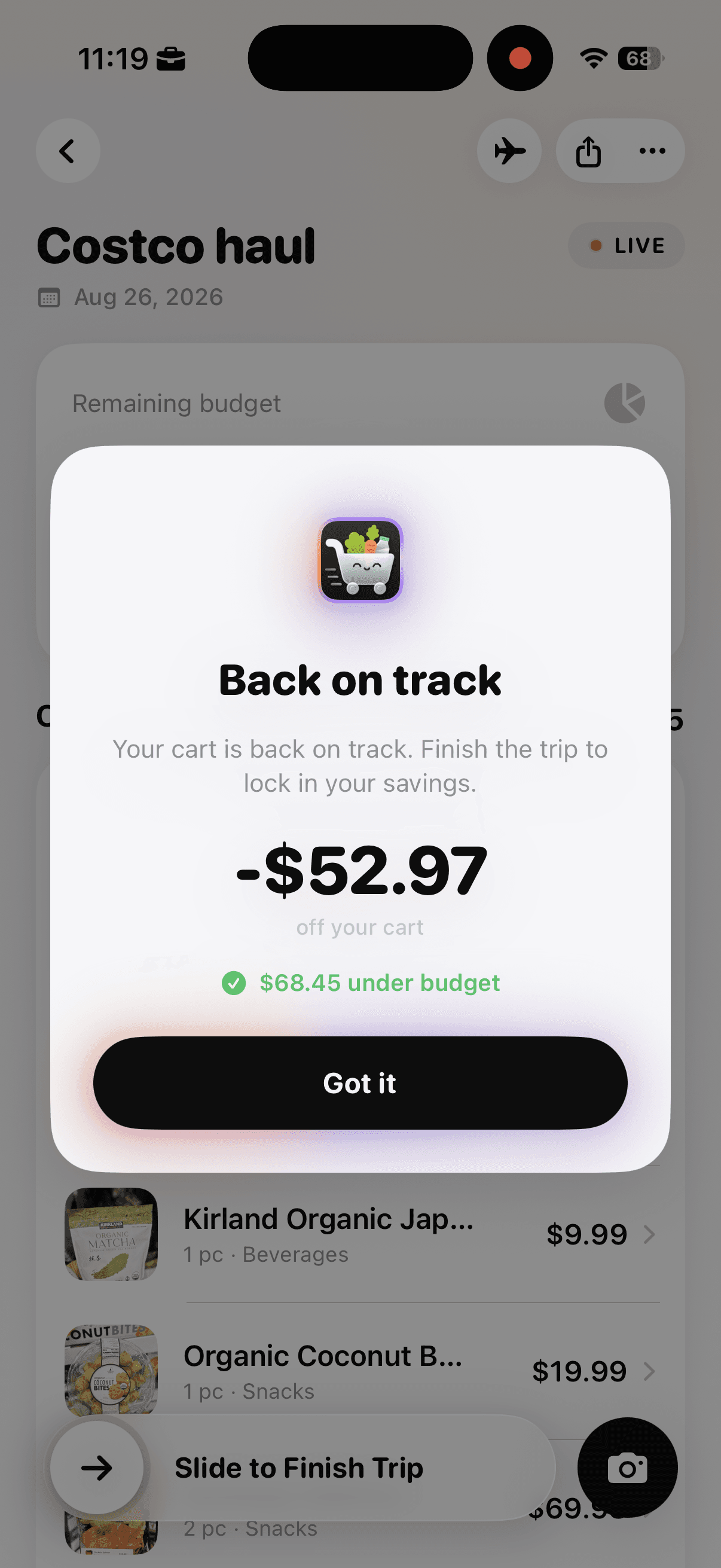
The confirmation summarizes the amount removed and the cart’s new position under budget.
Once the monthly amount is divided into trips, use a budget grocery list to turn one trip’s limit into meals, quantities, and a checkout buffer.
For comparison with a national benchmark, the USDA monthly food plan reports provide regularly updated estimates by plan type and household composition.
To make each store trip easier to reconcile with the monthly number, try Cart AI on the App Store