
Maya entered a warehouse store with a $300 limit and a reasonable list. Forty minutes later, the cart was at $284.52 with aisles left. This is where a grocery list on a budget either becomes useful or becomes decoration.
The list began with meals
Five dinners covered chicken rice bowls, pasta with vegetables, bean tacos, soup, and breakfast for dinner. Lunches used leftovers. Rice, onions, yogurt, and vegetables appeared in more than one meal, keeping the list focused.
Bulk quantities created the pressure
A two-pack priced at $9.99 each became $19.98. Three $12.99 snack boxes became $38.97. The products were not individually outrageous, but the extra units used budget needed elsewhere.
Meal anchors stayed
Chicken, eggs, beans, vegetables, pasta, rice, fruit, and dairy remained. Removing them would create another store trip. Maya also kept one convenience meal for a late work night because the budget needed to fit real life.
The cart got three priority levels
Required items completed meals. Flexible items were useful but adjustable. Easy cuts could wait. A household multipack already stocked at home was an easy cut. Duplicate snacks and a second drink powder were flexible.
Quantity changes protected the plan
Removing one $12.99 snack unit and one $9.99 drink unit saved $22.98. Removing the $29.99 nonessential multipack brought the total adjustment to $52.97. No breakfast, lunch, or dinner disappeared.
The list changed, but the plan survived
A budget list must adapt to real package sizes and prices. Its purpose is to preserve priorities, not force every planned quantity into the cart.
Copy the process
Before a warehouse trip, mark each item as a meal anchor, flexible quantity, or optional. Track major prices. Pause around 80 percent of the limit. Reduce flexible quantities first, then remove optional products.
Use the final cart review to connect the plan with the actual total before checkout.
Why warehouse stores need a different list
A standard supermarket list assumes you can buy one normal-size unit. A warehouse list needs quantity notes and storage checks. Write one pack, enough for four meals, or only if freezer space is available. Those notes protect you from buying a good unit price in an unusable amount.
Check package sizes online or from an old receipt when possible. If chicken comes in a six-pound pack, decide before the trip whether you can portion and freeze it. Otherwise the product is not really interchangeable with a two-pound supermarket package.
Maya left room for unknown prices
She planned about $255 of known products against the $300 limit. The remaining $45 was not a target to spend. It covered weight differences, changed prices, and one item she might have forgotten.
That buffer mattered because several products were larger than expected. Without it, the cart would have crossed the budget much earlier and forced cuts to planned meals.
She checked storage before value
The freezer had room for meat and vegetables but not several bulky prepared foods. The pantry could hold rice and canned beans, but another large snack box would sit on the counter. Storage made some choices easy before price entered the debate.
A warehouse bargain that creates clutter or spoilage is not a bargain. Space is part of the cost, especially in a small kitchen.
The final review took less than two minutes
Maya checked every optional and duplicate item, starting with the highest price. She did not recalculate eighteen products by hand. She looked for changes that preserved the five planned dinners and brought the projected total comfortably below $300.
After the $52.97 adjustment, the cart had room for a missed staple without threatening the limit. She matched the digital quantities to the physical cart before heading to checkout.
How to use Cart AI for a warehouse trip
Create a trip, name it for the store, and enter the full trip budget. Add products with the actual package quantity and shelf price. Cart AI shows the remaining budget and percentage used as the large items accumulate.
Near the end, open the menu and choose Adjust Cart. Review suggestions such as removing a nonessential multipack or changing two units to one. Select the suggestions that preserve the meals and fit your storage.
Watch the projected total change before applying the adjustments. Once the total has enough buffer, apply the selected suggestions and remove the matching items from the physical cart. The final confirmation shows how much came off and how far the trip sits under budget.
What Maya changed for the next warehouse trip
She added quantities directly to the list and separated household products from food. She also set a rule that a second unit needed a named use or a storage destination. “We will use it eventually” was no longer enough.
Before returning, she checked the freezer, pantry, and bathroom cabinet. That prevented duplicate stock and made the warehouse trip about a few deliberate bulk purchases rather than a tour of every possible bargain.
The biggest lesson was simple: a warehouse store rewards preparation, not optimism. Large packages amplify both good planning and bad guesses.
Warehouse memberships can also create pressure to justify the annual fee by buying more. Ignore that feeling. The membership cost is already spent. Each product still needs to fit the current budget, storage space, and meal plan. Walking past a bulk bargain is the right choice when the household does not need the quantity.
How to prepare a warehouse-store list in Cart AI
Open Cart AI’s Lists tab and tap the plus button. Starting with a saved list is especially useful for warehouse shopping because the estimated cost helps expose how quickly large packages can consume the trip budget.
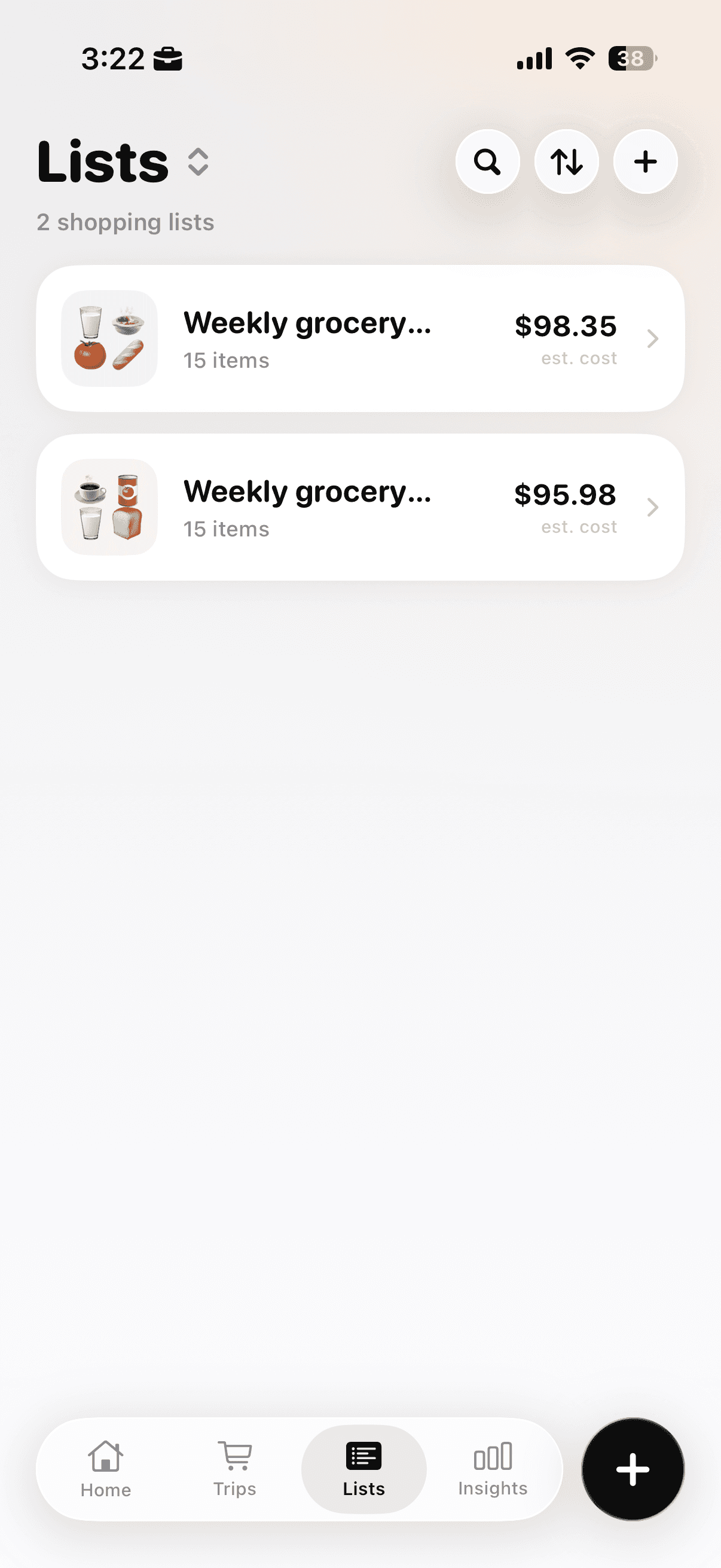
The Lists tab keeps saved lists, item counts, and estimated totals in one place.
Tap the plus button and choose Plan a Shopping List. Shop & Track Now starts a live trip, while Quick Cart Total is designed for quickly totaling products before checkout.
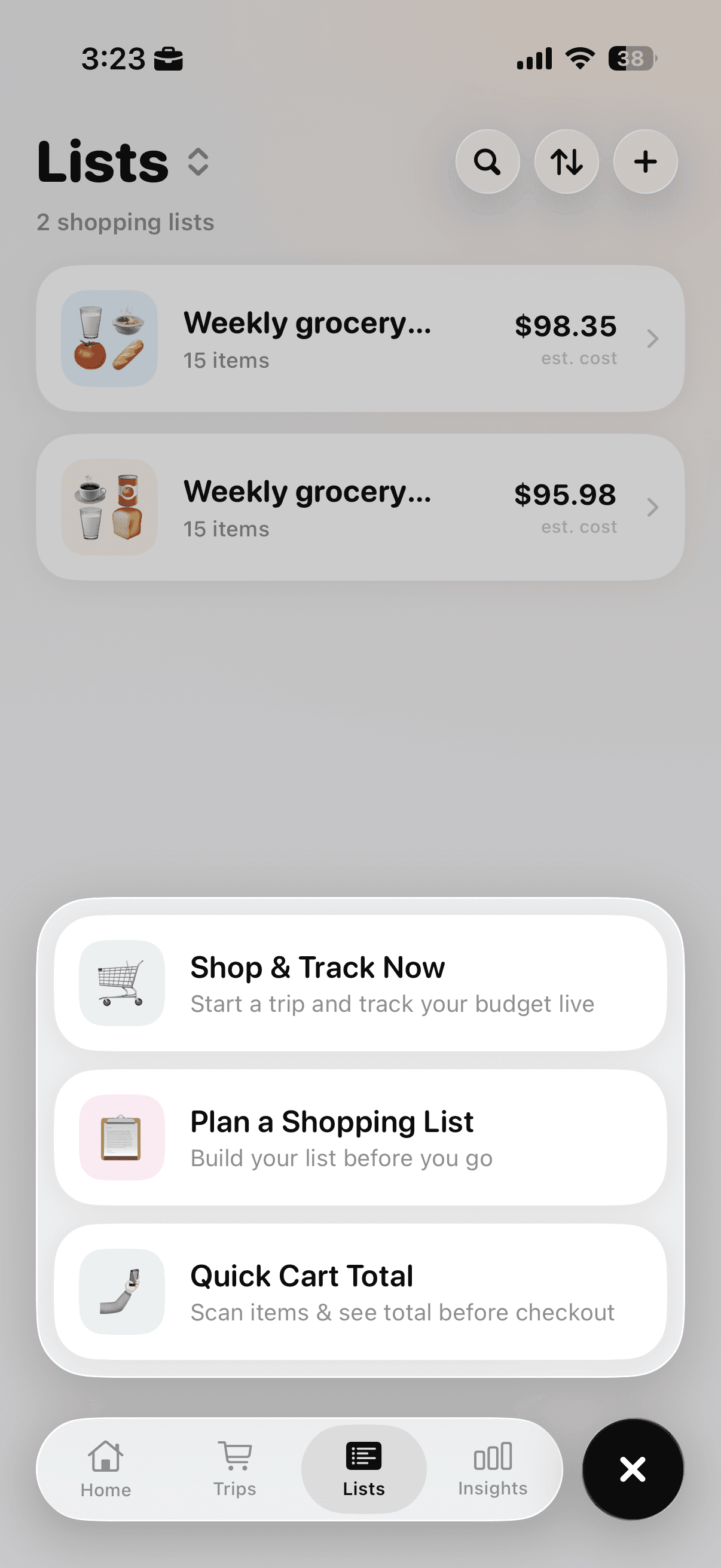
Choose Plan a Shopping List when preparing groceries before the store.
Choose Plan a Shopping List and enable Plan with AI. Use a prompt such as “Warehouse grocery trip for two people under $300, focused on five dinners, pantry staples, and quantities that fit a small freezer.” Mention storage limits and foods already stocked.
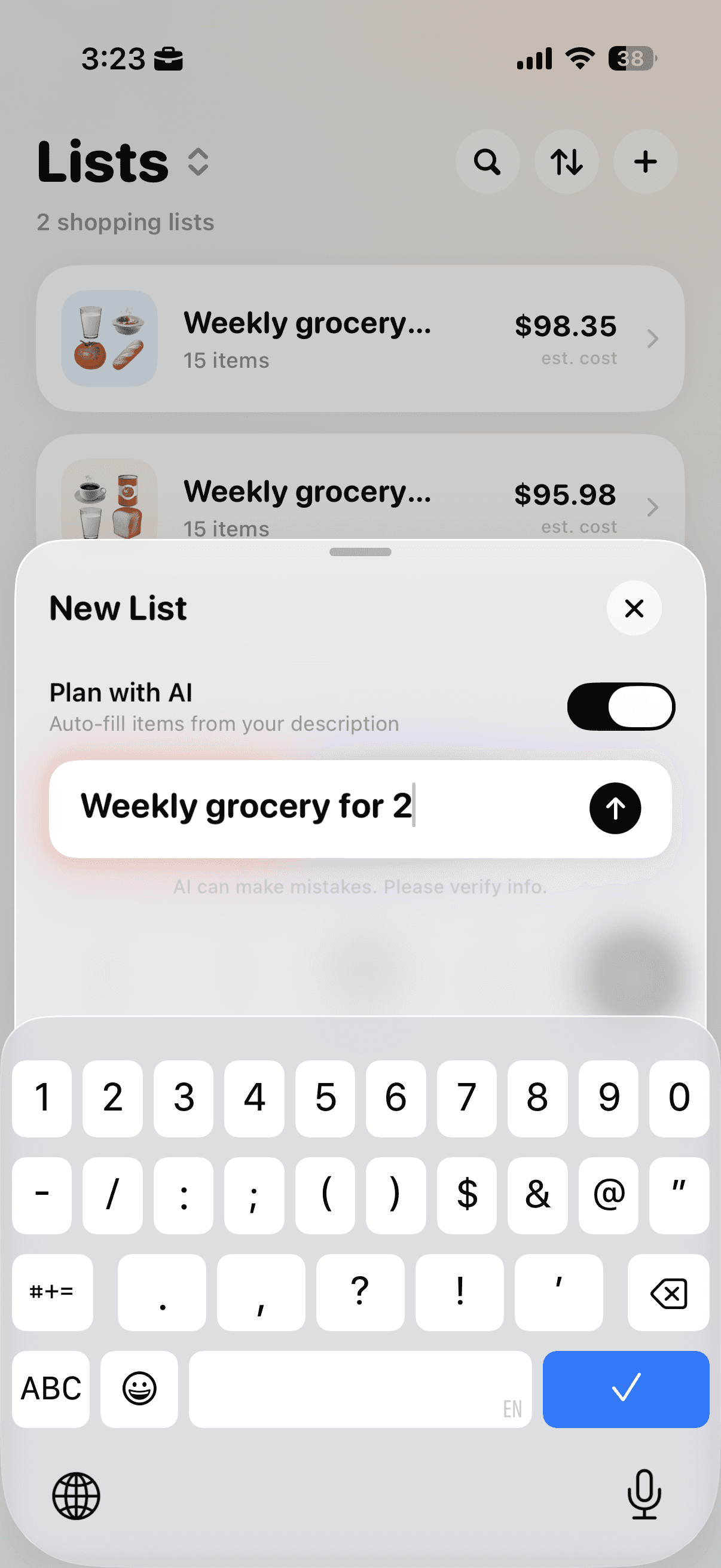
Enable Plan with AI and describe the household, timeframe, budget, and important constraints.
Open the generated list and review each quantity. Bulk recommendations still need judgment. Remove products you already own, reduce oversized amounts, and confirm that the estimated total leaves room for actual warehouse package prices.
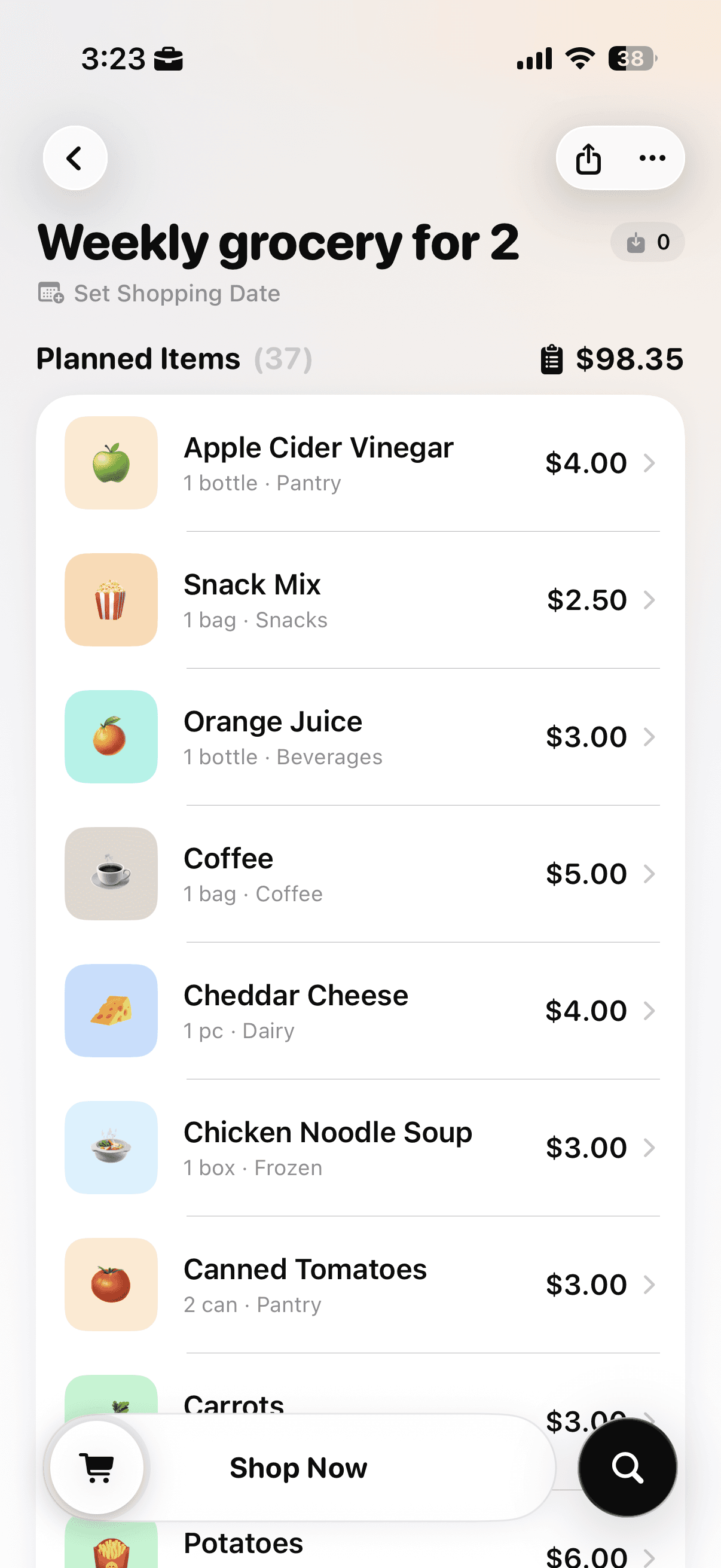
Review the generated items, quantities, categories, and estimated total before starting the trip.
The same meal-first method in this grocery list budgeting guide is useful before translating normal package sizes into warehouse quantities.
If bulk food will be stored for later, review the USDA’s freezing and food safety guidance before deciding how much the freezer can realistically hold.
For help handling warehouse-size quantities without doing the subtraction yourself, try Cart AI on the App Store